Output
Lay your views out on sheets
A sheet is a page of your document: a paper, a frame, a title block that fills itself, and the views you place on it at their scales. Arrange it on screen, then export the set as one PDF.
The Sheets page
In the toolbar of the drawing, Sheets — between Render and the export icon — opens a page of its own, where views are laid out on pages. Back returns to the drawing, as it was. Sheets is available once a model is open.
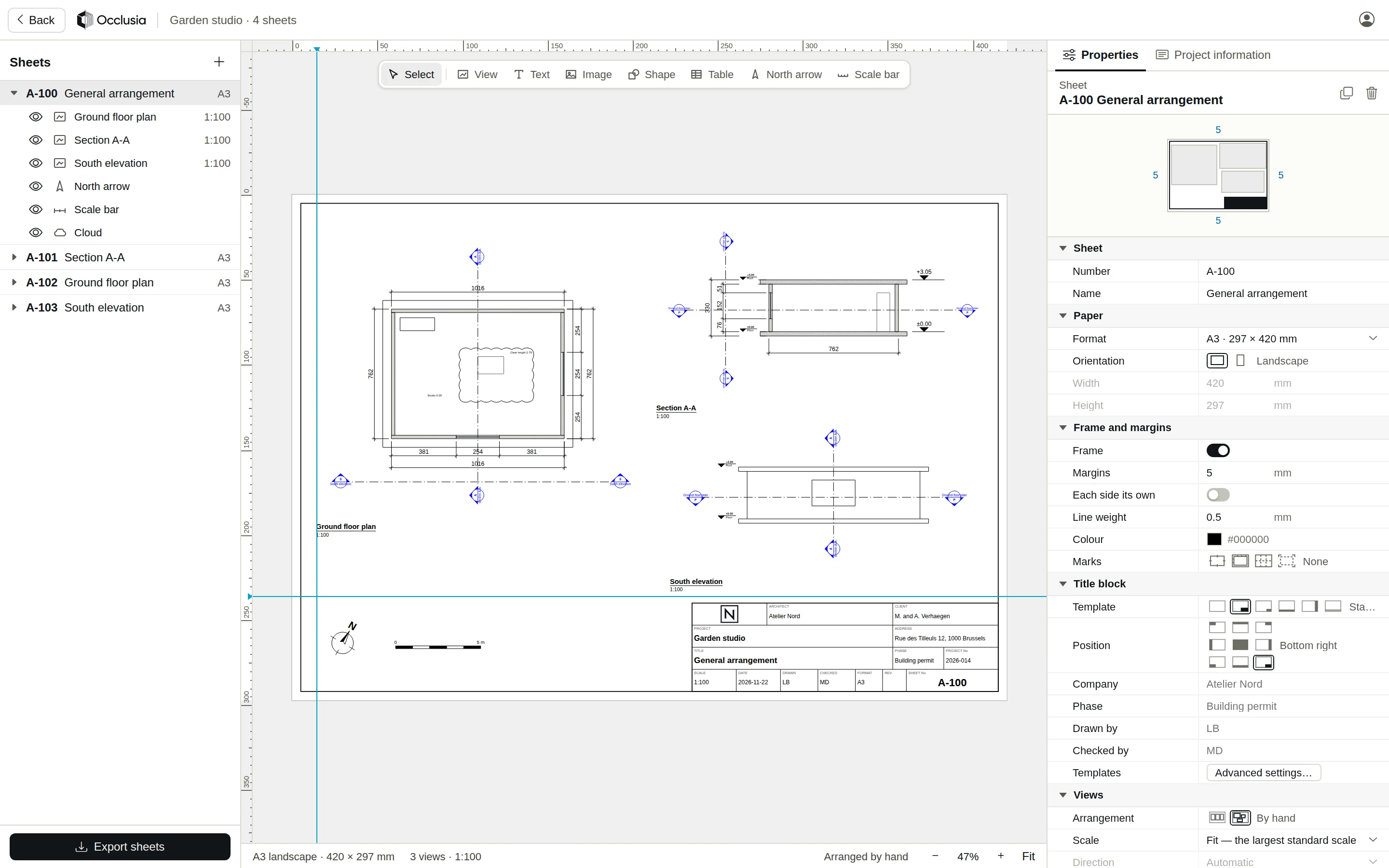
- On the left, Sheets lists the project's sheets, in the order of the document, each with what it holds under it: its views, texts, images and shapes. Click a sheet to show it, drag it to another place in the set. The eye hides an item without removing it.
- In the centre, the sheet as it prints, true to its paper, between two rulers in millimetres: line weights, dashes and texts keep their size on paper at every zoom. The tools stand above it; the bar under it says its paper, its views and its scale, and holds the zoom.
- On the right, Properties shows the settings of the sheet, or of what is taken on it; Project information holds what every title block writes.
- At the top, the project's name and your account.
Right-click a sheet in the list to Duplicate or Delete it. Copy sheet settings, then Paste sheet settings on another sheet, gives it the same paper, frame, margins, title block and arrangement, and leaves what it holds alone.
Sheets are part of the project: they are saved with it, and every change is a step of Undo.
Create sheets
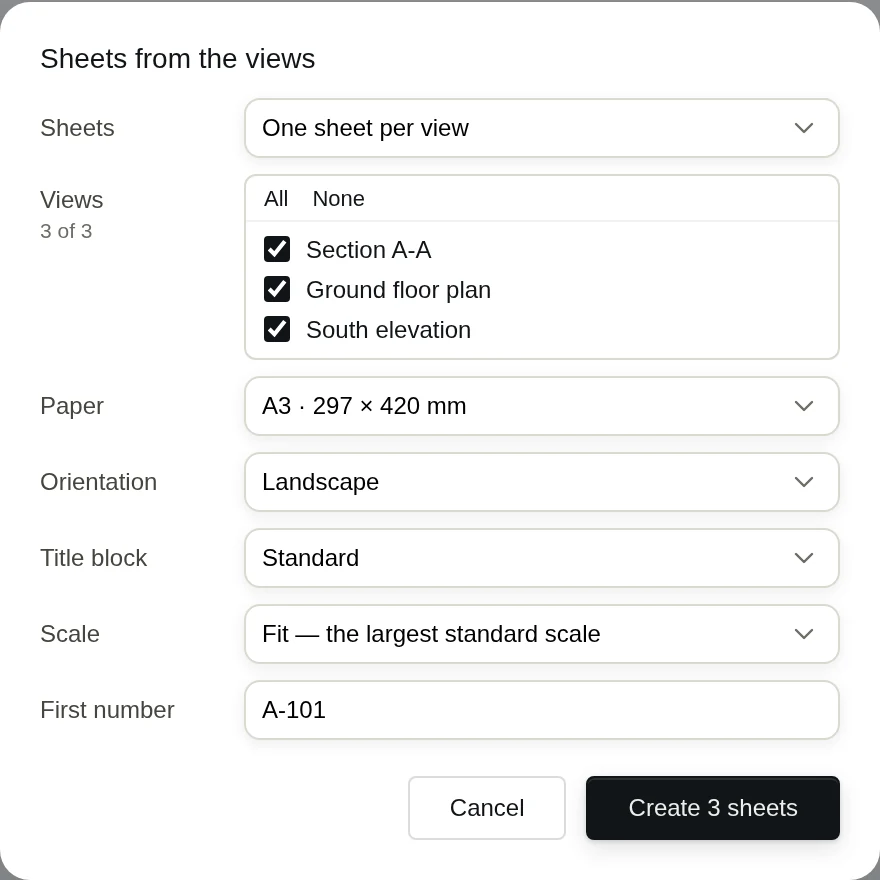
+, beside Sheets, offers two ways: Blank sheet makes an empty page with the paper and title block of the sheet in view; Sheets from the views… makes a whole set in one go.
- Sheets
- One sheet per view, or Several views per sheet with the number of views a sheet.
- Views
- The views of the model to place, in the order of the list. All and None tick or clear them.
- Paper
- One of the 21 formats and its orientation.
- Title block
- One of Occlusia's templates, one of the project's own, or None.
- Scale
- Fit — the largest standard scale at which the views fit their sheet — or a scale.
- First number
- The first sheet's number; the others count from it: A-101, A-102…
The whole set is one step of Undo. Each sheet is named after its views; rename it in its properties.
Arrange a sheet
A new sheet arranges its views itself: in rows or columns, clear of the title block, at one scale. It follows the model — a view that grows takes more room, and the others move. Take a view in hand and the sheet is arranged by hand from then on.
- Click an item to take it: its box and its handles show, and Properties shows its settings. Shift-click adds one or lets one go.
- Drag a taken item to move it. Its edges and its middle are drawn to the frame, the paper, the guides and the other items; a line shows what it is aligned with. Hold Alt to move it freely, Shift to keep it level or plumb.
- The arrow keys move it by 1 mm of paper (Shift: 10 mm). Delete removes it; ⌘D or Ctrl+D duplicates it.
- Drag a handle of a view to frame it: the view becomes a window on its drawing, and the drawing stays where it is on the paper.
- Double-click a view to enter it: drag its drawing inside its frame. Escape leaves it.
- A drag anywhere else moves the sheet, as two fingers on a trackpad do; the wheel zooms about the pointer. A double-click beside the items shows the whole sheet again.
Rulers and guides
The rulers count millimetres from the paper's top left corner. Press on a ruler to lay a guide at that place, and drag its flag on the ruler to move it.
- Guides are the project's: the same on every sheet, saved with it. They line a set up — the same left edge, the same height for a title on each page.
- What you move is drawn to them, as it is to the frame and to the other items.
- They are never printed: no export, no preview shows them.
- Click a guide's flag twice to remove it; right-click a ruler for Remove this guide and Remove all guides.
What a sheet holds
The tools above the sheet place a new item in the middle of what you see of it, taken in hand; Select is the tool of every other moment.
- View
- A view of the model — a plan, a section, an elevation — at a scale. The same view may stand on several sheets, at different scales: its dimensions and texts are sized for each.
- Text
- A text, typed where it stands: double-click it to type, ⌘↵ or Ctrl+Enter to finish. Insert a field… writes a value the sheet fills itself — the project's name, the sheet's number, the date.
- Image
- A PNG, a JPEG or an SVG, kept in the project: a logo, a photo, a stamp, a location plan.
- Shape
- Rectangle, Ellipse, Line, with their colour, weight, line type and fill — a line has arrows, and as many points as you add — and Cloud, the revision cloud around a zone to look at, with the size and the swell of its arcs.
- Table
- Table, with your own columns and rows; Revisions table, the sheet's revisions; Sheet list, every sheet of the project with its number and name. Each has its column widths, row height, alignment, header fill and pens.
- North arrow
- Turned as the plan it follows is: the model's north, read from the file. Five styles — Arrow, Circle, Needle, Triangle, Compass — or Custom…, your own symbol imported as an image; its letter is yours to write, or to hide.
- Scale bar
- A graphic scale that follows a view's scale: Blocks, Two rows or Line and ticks, its length, its divisions and a first one cut finer, figures at its ends or at every division.
A view's properties hold what it Shows, its Scale — Fit, a standard scale or Custom —, its Frame, and its Title: the view's name and scale under it by default, or your own words, with their font, their colour, their distance from the view and how far they are moved right or down.
Sheet properties
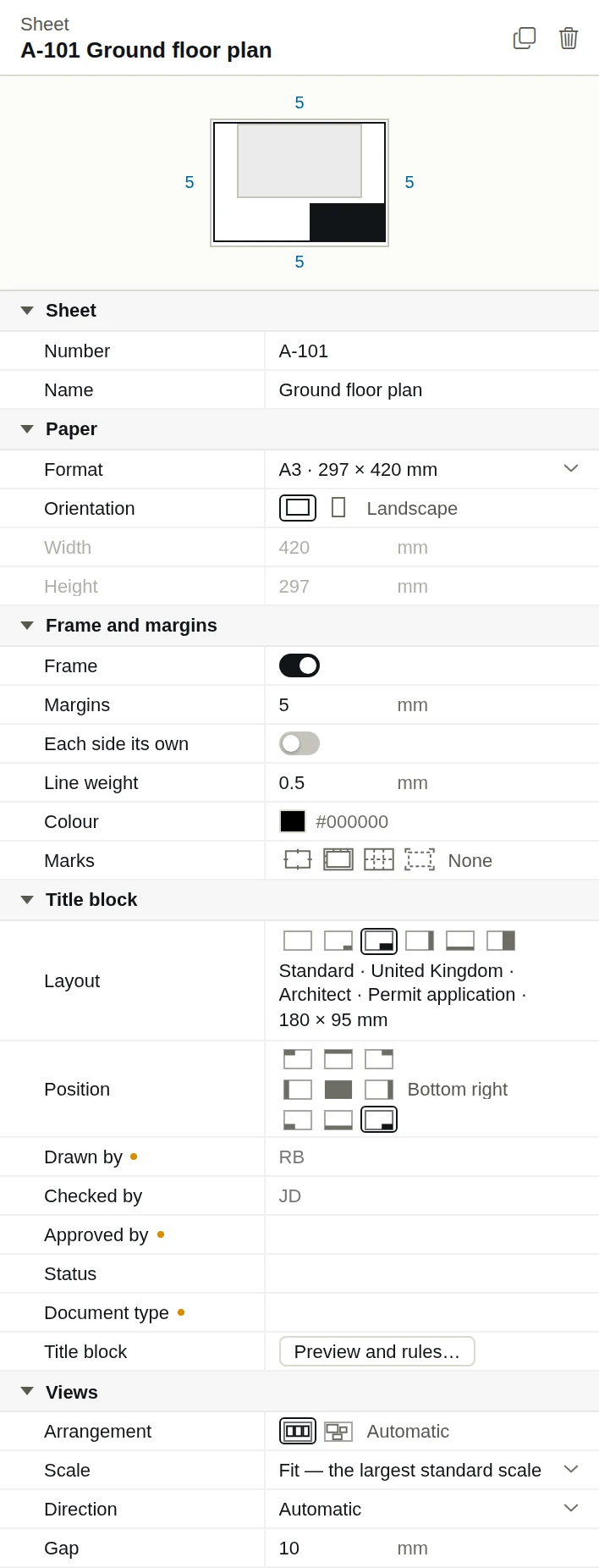
With nothing taken on the sheet, Properties shows the sheet's own settings, under a small diagram of the page with its four margins. Changes are saved as you make them.
- Number · Name
- What the title block and the sheet list write: A-101, Ground floor plan.
- Format · Orientation
- The paper: ISO A5 to A0, ISO B4 to B1, ANSI and ARCH formats, or Custom size with its Width and Height in millimetres.
- Frame
- The line drawn around the sheet, at its margins. Off, the sheet has no frame.
- Margins
- From the paper's edge to the frame, 5 mm by default. Each side its own sets Left, Top, Right and Bottom apart — a wider binding margin on the left.
- Line weight · Colour
- The frame's pen, in millimetres on paper.
- Marks
- What a frame carries by ISO 5457: a mark at the middle of each side, numbers and letters along the edges, where the sheet folds to A4, the paper's corners.
- Layout · Position
- Under Title block: the layout the project's title block takes on this sheet — None, Compact, Standard, Strip, Band or Full; with your own design, None or Own design —, named under its pictograms with its size, and the corner or edge it stands against (see Title blocks).
- Drawn by · Checked by · …
- The fields the rules ask of each sheet — who drew, checked and approved it, its status, its document type. Left empty, a field writes the project's, shown in grey.
- Arrangement · Scale · Direction · Gap
- How the sheet arranges its views: itself or by hand, at the largest standard scale that fits or at yours, in rows or columns, a gap apart.
- Revisions
- The sheet's revisions, oldest first: index, date, description, author. The last one is the revision the title block writes.
Title blocks
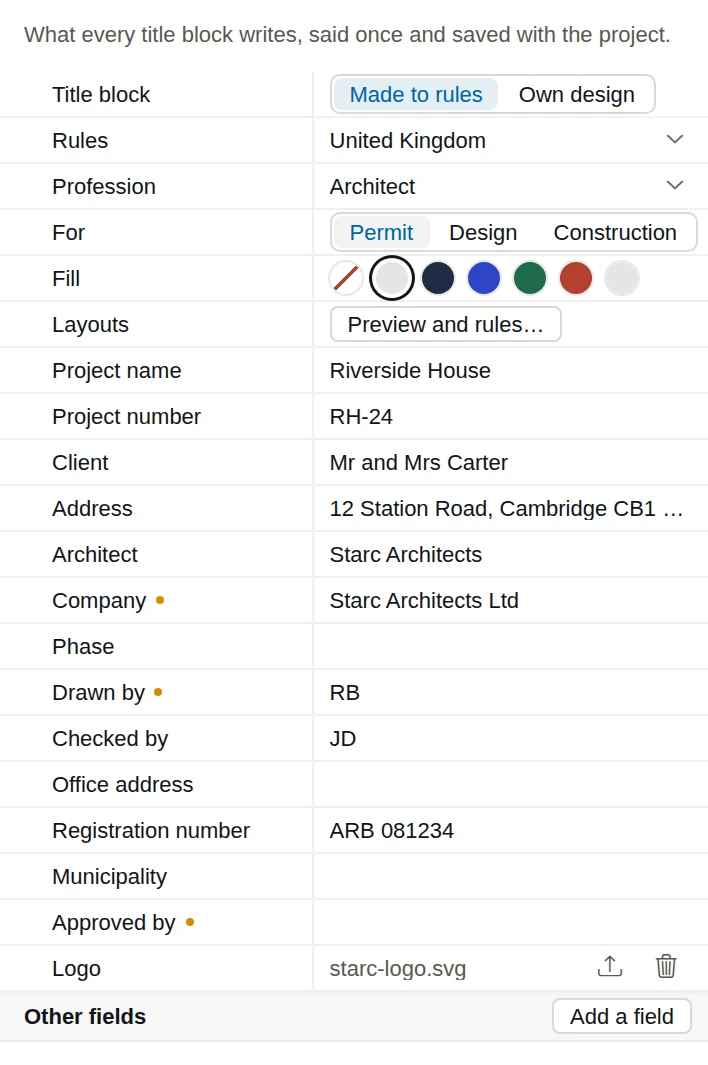
A project has one title block, said once in Project information › Title block: Made to rules — Occlusia's title block, laid out to ISO 7200 and filled as the permit and professional texts of a country ask — or Own design, a title block you draw in any tool (see Your own title block). Each sheet then picks how it is laid out (see Layouts).
- Rules
- ISO 7200's international title block, or the rules of one of 28 jurisdictions: France; Belgium — Wallonia, Brussels-Capital, Flanders, German-speaking Community; Luxembourg; the United Kingdom; Ireland; the United States; Canada; the Netherlands; Italy; Spain; Portugal; Germany; Austria; Switzerland; China; Hong Kong; Japan; South Korea; India; Singapore; Malaysia; the United Arab Emirates; Saudi Arabia; Australia; New Zealand.
- Language
- Where a jurisdiction writes in several languages — Brussels in French or Dutch, Switzerland in German, French or Italian, Canada in English or French: the captions and the dates. The project's language follows it.
- Profession
- Architect, interior architect, landscape architect, structural engineer, building services engineer, land surveyor or building designer: who signs, under which title, with which register number and seal.
- For
- Permit — the permit application, which asks the most —, Design or Construction.
- Fill
- The ground of the sheet's number and of the revisions' header: none, Occlusia's light grey, or a colour of yours. On a dark colour, their texts turn white.
- Preview and rules…
- Each layout drawn with the project's information, the texts the block follows with their links, what is still to fill in, and what the sheet itself must carry besides: a graphic scale, a north point, a fold to A4.
- The fields the rules ask for follow in the same tab. A dot marks a required one; its tooltip says which text requires it.
- Every block carries ISO 7200's mandatory data fields: the legal owner — your logo, or your company's name —, the identification number, the date of issue, the sheet number, the title, who approved, who drew and the document type.
- A field left empty on a sheet takes the project's: Drawn by said once for the project, and on the sheets another person drew.
- Logo and Seal take an image: a PNG, a JPEG or an SVG. Other fields adds fields of your own, for a title block of your own.
Layouts
In a sheet's Properties, Title block › Layout picks the layout the project's title block takes on this sheet. What it writes and how it looks stay the same; only the arrangement changes.
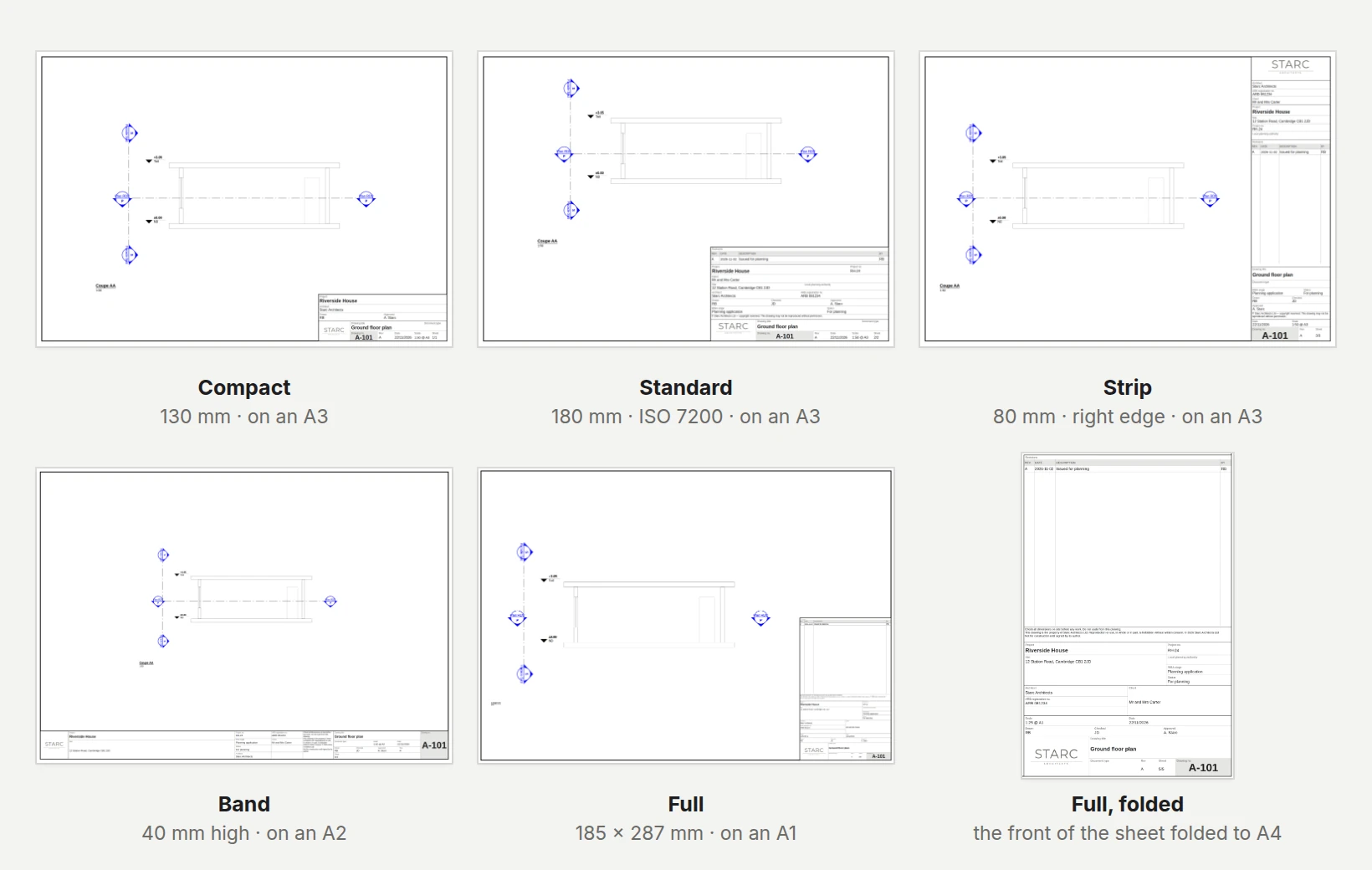
- Compact
- 130 mm wide, bottom right: what the rules require, the project, the title and the sheet's number.
- Standard
- 180 mm wide, bottom right — ISO 7200's width, which shows on the front of a sheet folded to A4: the revisions, the project and who signs, then your logo beside the title and the sheet's number.
- Strip
- A column 80 mm wide along the right edge, the whole height of the sheet, with the revisions.
- Band
- A band 40 mm high along the bottom edge, the title and the sheet's number at its right end. Made for an A2, an A1 or an A0.
- Full
- 185 × 287 mm in the bottom right corner: half of an A3, and on an A1 or an A0 exactly the front of the sheet once folded to A4 (DIN 824). Everything the rules ask, the office's notice, and the revisions taking what is left.
- None
- No title block on this sheet.
Preview and rules… opens the Title Block window: each layout drawn with the project's information, its size, the rules it follows and what is still to fill in. Use on this sheet and Use on every sheet apply the one shown; Download SVG gives it as an SVG to restyle (see Your own title block).
- Band and Full write the office's notice, in the title block's language: dimensions to check on site, nothing to measure on the drawing, the drawing the property of the company named in Project information, no construction before it is signed. A note of the country's rules that says the same is not written twice.
- On an A3, prefer Compact, Standard, Strip or Full: a band along an A3 is too narrow for every field at a legible size.
- With numbers and letters around the frame (Frame › Marks), the title block cuts their band, and no number or letter is left half covered.
Your own title block
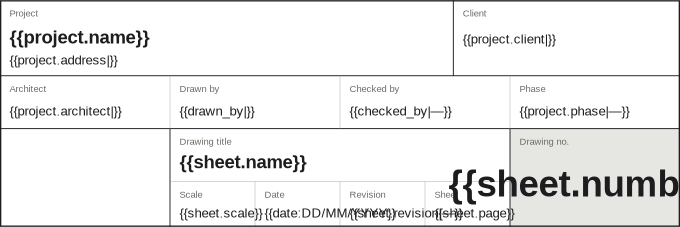
Any design, drawn in any vector tool — Illustrator, Affinity, Inkscape, Figma, your CAD software —, filled by Occlusia as it fills its own: the project's information, the sheet's number and title, the scale, the date, your logo.
- 01
Start from a title block
Open Preview and rules… — in a sheet's Properties, or under Project information › Title block —, pick a layout and choose Download SVG: Occlusia's title block, in that layout, as an SVG whose texts are already the fields they write and with no value in it. Or download the sample below, or start from a blank page.
- 02
Draw it your way
Open it in your tool and change everything you like: shapes, colours, fonts, the place of your logo. Keep the texts between double braces — they are the fields — and the rectangle whose id is
image:logo. - 03
Give it its size
Set the drawing's size on paper in millimetres —
width="180mm" height="60mm", with aviewBoxin the same proportions. A drawing 180 mm wide stands 180 mm wide on the sheet, whatever the paper, and its lines keep their weights. - 04
Bring it in
Save it as SVG. In Project information › Title block, choose Own design and pick the file: every sheet that had a title block now wears yours, and a sheet's Title block offers None or Own design. On the Design row, the upload icon replaces it, the download icon gives Occlusia's title block again to start over, and the bin removes it — the sheets wear the title block made to rules again.
Fields of a title block
A text of the drawing that names a field between double braces is replaced by its value on each sheet. Fields and plain words may share a text: Sheet {{sheet.page}} — {{sheet.name}}.
| Field | What it writes |
|---|---|
| {{project.name}} | The project's name — the model's title when it has none |
| {{project.number}} | The project's number |
| {{project.client}} · {{project.address}} | Its client and its address |
| {{project.architect}} · {{project.company}} | Its architect and the company that owns the drawing |
| {{project.phase}} | Its phase |
| {{project.<key>}} | Any field of the project: those the rules ask for — project.registration, project.municipality, project.parcel… — and your Other fields |
| {{drawn_by}} · {{checked_by}} · {{approved_by}} | Who drew, checked and approved: the sheet's own, else the project's |
| {{sheet.number}} · {{sheet.name}} | The sheet's number and title |
| {{sheet.scale}} | Its scale, 1:50 — “As indicated”, in the project's language, when its views differ |
| {{sheet.scales}} · {{sheet.views}} | All its scales; the names of its views |
| {{sheet.page}} · {{sheet.index}} · {{sheet.count}} | 2/5; its place in the set, 2; the number of sheets, 5 |
| {{sheet.format}} · {{sheet.size}} · {{sheet.orientation}} | A3; 420 × 297 mm; landscape or portrait |
| {{sheet.revision}} · {{sheet.revision_date}} · {{sheet.revision_description}} | The sheet's latest revision: its index, its date, what changed |
| {{date}} · {{date.short}} · {{year}} · {{time}} | The date of issue, 2026-11-22; the same written the project language's way — 22/11/2026 in French; its year; its time, 14:05 |
| {{date:D MMMM YYYY}} | A date written your way, with YYYY, YY, MMMM, MMM, MM, M, DD, D, HH and mm: 22 November 2026 |
| {{label.scale}} · {{label.date}} · … | Occlusia's own captions, in the project's language: label.project, label.client, label.address, label.title, label.scale, label.date, label.drawn, label.checked, label.number, label.sheet… |
| {{model.title}} · {{model.file}} | The open model's title and file name |
|gives what stands in when a field is empty:{{project.phase|—}},{{checked_by|To be checked}}.- A field nobody filled writes nothing — the stand-in, when it has one. Through the API,
sheets.previewnames the fields nobody filled. - A field may be written anywhere in a text, several times, with any font, size or colour: it takes the look of the text it stands in.
- Through the API, a sheet's own
fieldstake the place of any field:"date": "2026-11-01"writes that date wherever{{date}}or{{date:…}}stands — the day a set was issued, frozen.
Drawing it well
- Logo · Seal
- A rectangle whose id is
image:logotakes the project's logo, fitted into its box with its proportions kept;image:sealtakes the seal, andimage:<name>the project's image of that name. - A whole page
- A page frame drawn at the paper's size, in place of a title block: a rectangle whose id is
drawing-areasays where the views go, and is not drawn. - Texts
- A text keeps the font, size, weight, colour and alignment it is drawn with:
text-anchor="end"aligns it on its right,middlecentres it. Leave room for the longest value it will write: a drawn text does not shrink. In a viewBox counted in millimetres,font-size="2.5"writes capitals 1.8 mm high, the smallest a printed drawing should use. - Fonts
- Arial, Helvetica, Times New Roman, Courier New, Verdana, Tahoma, Montserrat, Inter, Lato, Open Sans, Poppins, Roboto, Source Sans 3, Source Serif 4, Lora, Merriweather, Playfair Display, Carlito, JetBrains Mono, Source Code Pro, Architects Daughter, Caveat and osifont. Another font is written in the nearest of these: draw your texts in one of them, and turn a lettering you want exact — a logotype — into outlines.
- Lines
- A stroke keeps its weight on paper. For a printed drawing, use ISO 128's series: 0.13, 0.18, 0.25, 0.35, 0.5 mm.
- Images
- A picture embedded in the file is kept; one that links to another file is left out.
<svg xmlns="http://www.w3.org/2000/svg" width="180mm" height="40mm" viewBox="0 0 180 40">
  <rect x="0.2" y="0.2" width="179.6" height="39.6" fill="none" stroke="#000" stroke-width="0.35"/>
  <rect id="image:logo" x="4" y="4" width="46" height="32" fill="none"/>
  <text x="56" y="9" font-family="Arial" font-size="2.5" fill="#555">Project</text>
  <text x="56" y="16" font-family="Arial" font-size="5" font-weight="bold">{{project.name}}</text>
  <text x="56" y="23" font-family="Arial" font-size="3.5">{{project.address|}}</text>
  <text x="56" y="34" font-family="Arial" font-size="3.5">{{sheet.name}} · {{sheet.scale}} · {{date:DD/MM/YYYY}}</text>
  <text x="176" y="34" font-family="Arial" font-size="12" font-weight="bold" text-anchor="end">{{sheet.number}}</text>
</svg>- Your title block in every project: a configuration carries it with its images, and Set as Default Configuration starts every new project with it (see Reuse a layout).
- The API and the MCP server take the same SVG:
title_blocks.createwithsvg(orpath), andtitle_blocks.previewwithas_templategives Occlusia's title block as an SVG to restyle.
Export the sheets
Export sheets, at the foot of the list of sheets — or Export › Sheets... in the menu — opens the sheets' export.
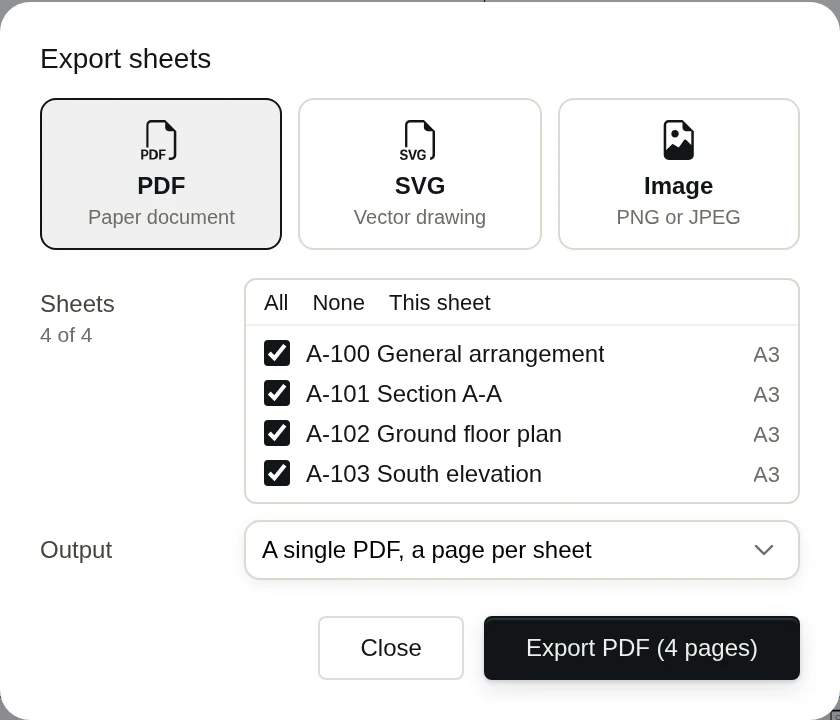
- A single PDF, a page per sheet — each page its own paper, up to 24 pages —, or One PDF per sheet.
- SVG
- One vector file a sheet, at the paper's size.
- Image
- One PNG or JPEG a sheet, at 96 to 600 dpi; a PNG may have a transparent background.
- Sheets
- The sheets to export: All, None, or This sheet.
- A sheet costs 1 credit, whatever the views it shows. The same sheet, unchanged, exported again in the same format within 24 hours is free.
- A PDF is made by Occlusia's conversion service and needs a connection; SVG and images are made in your browser.
- Sheets are not exported as DXF: export the views themselves from the drawing.
Reuse a layout
- A project keeps its sheets, its guides, its title blocks, its images and its information.
- A configuration carries them too: Export › Configuration (.occc), then Import › Configuration in another project. A sheet names its views by their names: the same names in the other model, and the sheets are ready — a sheet that arranges its views itself fits them again.
- Set as Default Configuration makes every new project start with your sheets, your title block and your logo: only the project's own information is left to say.
- The API and the MCP server make and export the same sheets: what a program lays out opens in Occlusia Studio, and the other way round.