Your model
Name your objects for the drawing
Occlusia styles objects by name. A few naming habits in SketchUp or Blender make a whole model quick to style, and keep its style as the model changes.
Why names matter
Every setting you give an object is stored under its name, not under the object itself. Three consequences follow, and a good naming scheme turns all three to your advantage:
- Objects with the same name share one style. Style one, and every object of that name follows, in every view.
- An object keeps its style through every model update, as long as its name stays the same.
- Rename an object, and its settings no longer reach it: they stay in the project, unused, until an object takes that name again.
One name per graphic treatment
Name objects after what decides how they are drawn — their material, their role — rather than after where they are. Everything drawn the same way then shares a name, and is styled once.
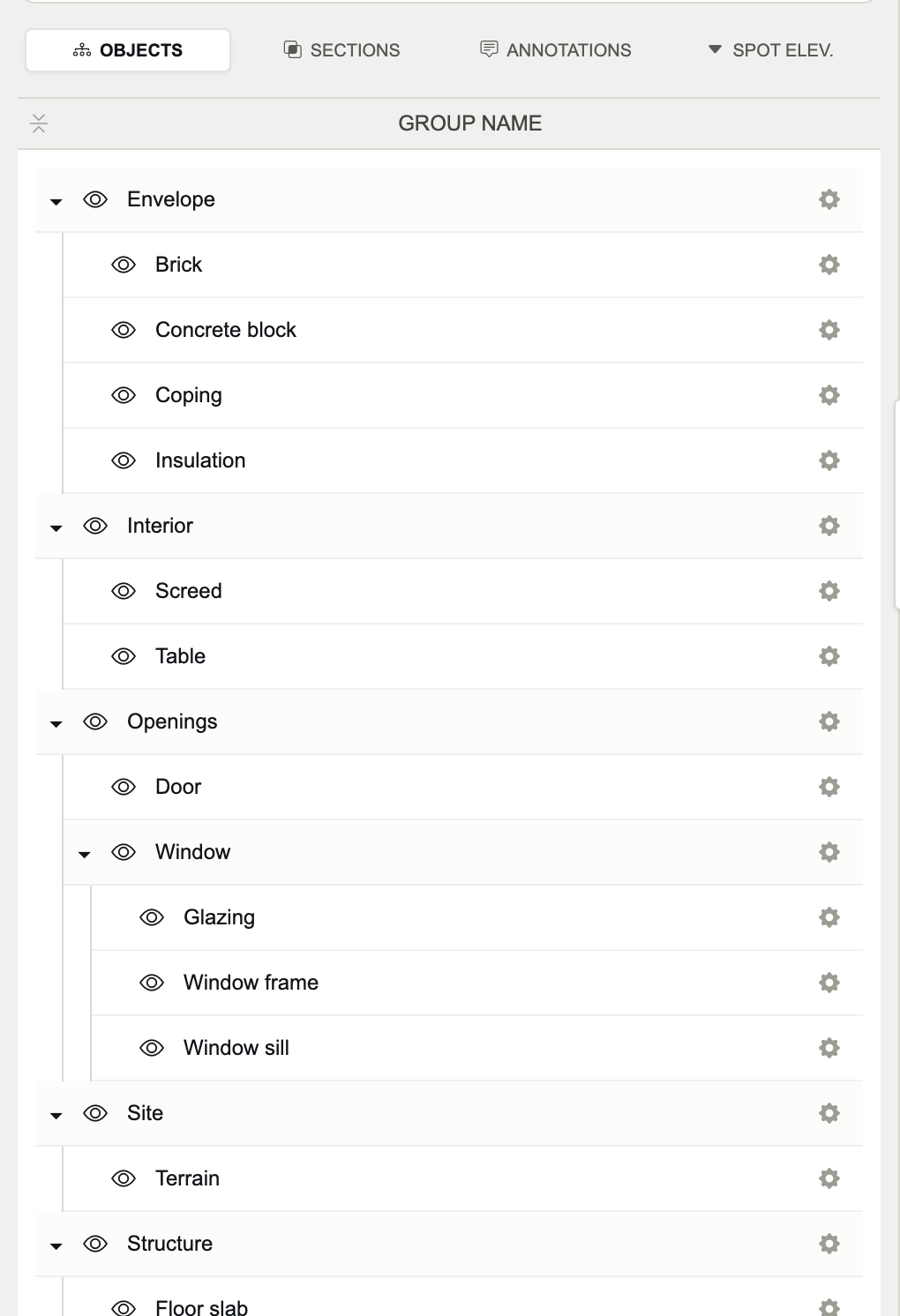
- Good:
Brick,Concrete block,Insulation,Concrete slab,Glazing,Terrain. - Less useful:
Wall 1,Wall 2,North wall left: each must be styled on its own, and a new wall needs styling again. - Distinguish what must be drawn differently:
Concrete slabandConcrete wallif the walls get another hatch than the slabs.
Use groups for families
A setting changed on a group is applied to the group and to everything inside it at once, replacing their own values for that setting. Group what is styled alike — Envelope, Structure, Furniture — and one change reaches the whole family; then refine a single object if it must differ.
Where each name comes from
- SketchUp group
- Its name in Entity Info; a group with no name takes its definition's name.
- SketchUp component
- The instance name in Entity Info; with no instance name, the component's definition name — so every copy of a component shares it.
- Blender
- The object's or the collection's name, without a numeric suffix:
Wall,Wall.001andWall.002are one name,Wall. - IFC
- The element's name; elements are grouped by IFC class under each storey.
- FBX
- The node's name, numeric suffixes such as
.001left out.
Name views and marks too
- Give every section plane a distinct name: views of the same name share their settings — visibility, shadows, page setup. The name also appears in the section markers and becomes the file name on export.
- A spot elevation's name is its label in the drawing; an annotation's text is its name.
Names to avoid
OCCTAGandOCCLEVELare reserved: they make annotations and spot elevations.- In SketchUp, a component whose definition name contains “TAG”, in any case — “Étagère”, “Montage”, “Etage 1” — is read as an annotation tag: its own lines and hatches are not drawn. Rename the component definition.
- An object with no name at all, and no definition name, is not read, nor anything inside it.
Renaming without losing a style
- 01
Copy the old settings
Before renaming, open the object's settings and click the copy icon in the panel's header.
- 02
Rename in the model
Rename the object in SketchUp or Blender, then update Occlusia (live link or re-import).
- 03
Paste them on the new name
Open the renamed object's settings and click the paste icon.