Output
Render, then export SVG, DXF or PDF
Render the active view to check it, then export one view or a set: SVG for the web and graphics software, DXF for CAD, PDF on paper at the scale you choose.
Render
Render (⌘↵ or Ctrl+Enter, from anywhere in the page) draws the active view in the drawing area. It turns black while the drawing on screen is out of date — a setting, a layer, a preset or the active view has changed since. A live-linked model redraws itself as it changes.
The export dialog
Click the download icon beside Render, or choose Export › PDF in the menu (Export › SVG and DXF export the active view at once, without the dialog).
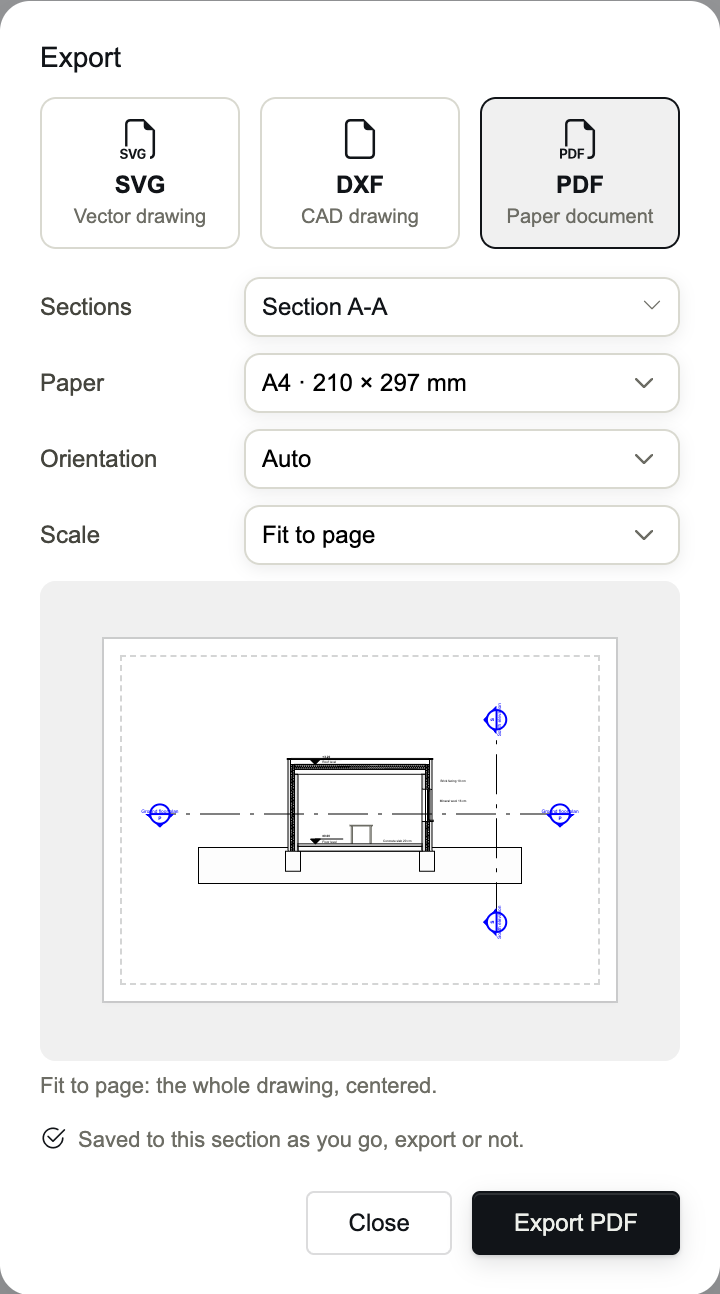
- SVG
- A vector drawing, made in your browser: for the web, Illustrator, Affinity, Inkscape.
- DXF
- A CAD drawing, with layers, lineweights, line types, real AutoCAD hatches, notes as text and blocks.
- A paper document, at the scale and on the paper you choose.
- Sections
- The views to export: the active view, plus any selected in the SECTIONS tab. All and None in the list.
DXF and PDF files are made by Occlusia's conversion service: the drawing is sent, converted and returned, and nothing is kept. They need a connection.
PDF page setup
- Paper
- 21 formats: ISO A5 to A0, ISO B4 to B1, ANSI Letter, Legal, Tabloid, C, D and E, ARCH A to E.
- Orientation
- Auto (landscape when the drawing is wider than tall), Portrait or Landscape.
- Scale
- Fit to page, 1:20, 1:50, 1:100, 1:200, or Custom: any 1:N up to 1:5000.
- Output
- For several views: One PDF per section, or A single multi-page PDF (up to 24 pages).
- At a scale, drag the drawing on the sheet to place it; it snaps back to the centre near it. The arrow keys move it by 1 mm of paper (Shift: 10 mm), a double-click centres the sheet on a point, Re-center puts it back.
- In a set, ‹ and › go from view to view: each view keeps its own paper, scale and position. Apply to all gives the others this paper, orientation and scale.
- The page setup is saved to the view as you go, exported or not.
Where the files go
- In Chrome and Edge, a save dialog asks where to write one file; for several, a folder.
- In Safari and Firefox, the files go to your downloads: a single file's name is asked first, a set downloads one file per view.
- Files are named after their views.
What the DXF contains
- Every layer of the project, with its colour, line type, weight, transparency and states.
- Lines with their weight, type and type scale, or ByLayer where the box is ticked.
- Hatches as AutoCAD hatches with their real patterns, solid fills, and the project's own line types under their names.
- Objects exported as blocks, notes and spot elevations as text, section markers as blocks.