Get started
A tour of the interface
The side panel holds the model and its settings, the drawing area shows the view, and a few tools float around it.
Two areas
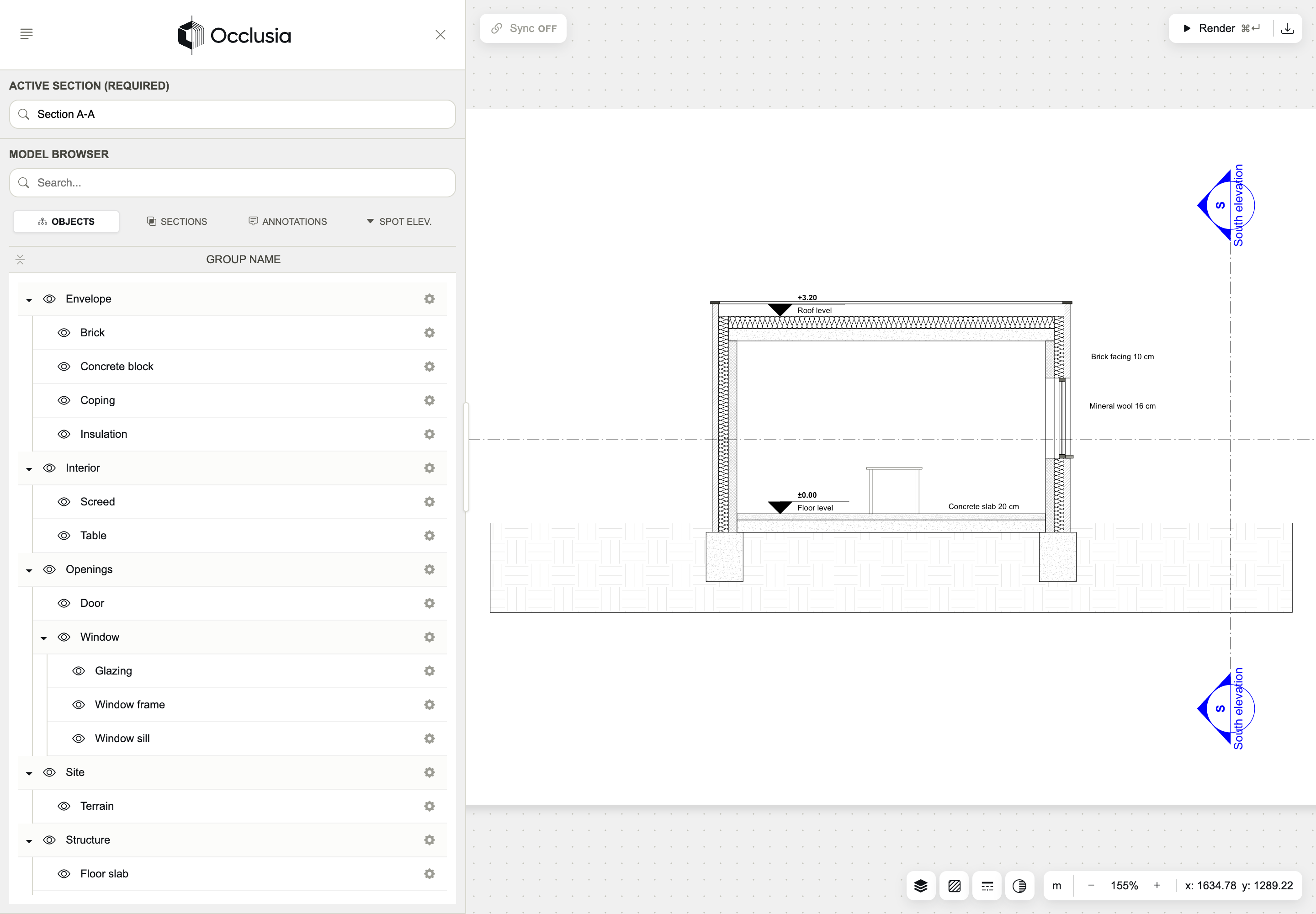
- On the left, the side panel: the menu, the active view, and the model browser that lists the model and opens the settings.
- On the right, the drawing area: the rendered view, and the tools around it.
The side panel can be widened by dragging its edge, and hidden with ✕; the arrow at the top left of the drawing area brings it back. On a phone, the panel and the drawing take the whole screen in turn.
The menu
The ☰ button at the top of the side panel opens the menu.
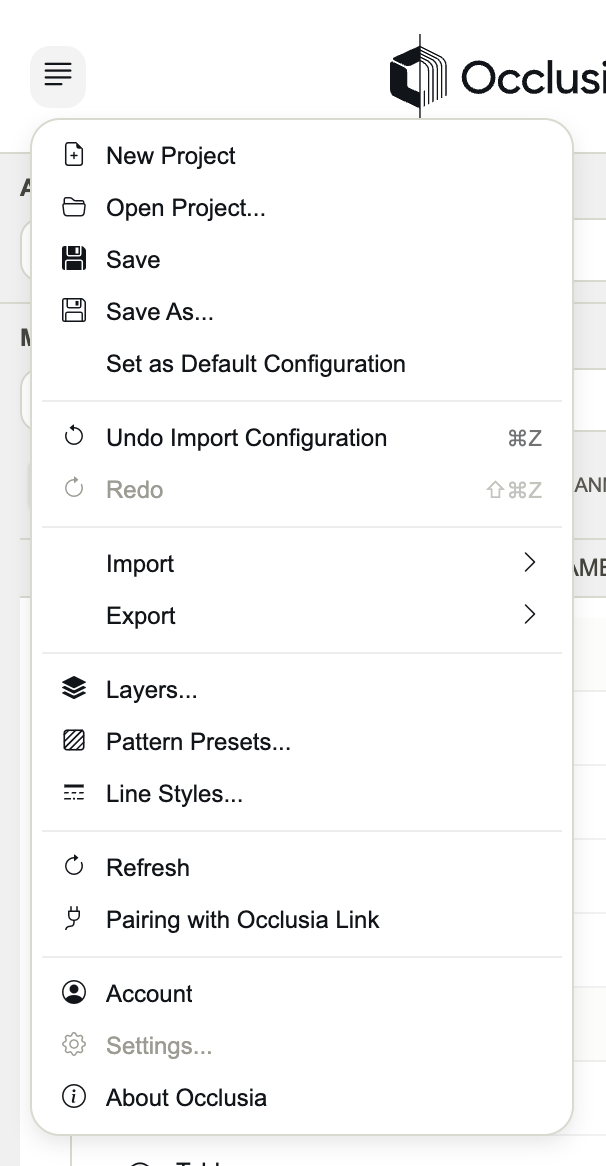
- New Project
- Closes the current model and starts an empty project from your default configuration.
- Open Project...
- Opens a
.occpproject. - Save / Save As...
- Saves the project as a
.occpfile. See Projects and configurations. - Set as Default Configuration
- Makes the current settings the starting point of every new project in this browser.
- Undo / Redo
- Takes back or repeats the last change; each entry says which one.
- Import
- Model opens a model file; Configuration (.occc) replaces the settings with those of a file.
- Export
- SVG, DXF and PDF export drawings; Configuration (.occc) saves the settings alone.
- Layers... / Pattern Presets... / Line Styles...
- Open the project's libraries, also at the bottom right of the drawing area.
- Refresh
- Reloads the lists of the model browser from the open model.
- Pairing with Occlusia Link
- Shows the code that links SketchUp or Blender to this window.
- Account
- Your name, email address and plan, a link to manage the account on occlusia.app, and Sign out.
- About Occlusia
- The version and the open source licenses.
The active view
Active Section (Required) chooses the view drawn in the drawing area: type part of a name to filter the list. Nothing can be rendered or exported until a view is active.
The model browser
The model browser lists the model in four tabs. Each row has an eye (visibility), a name and a gear (settings); a double-click on a row also opens its settings.
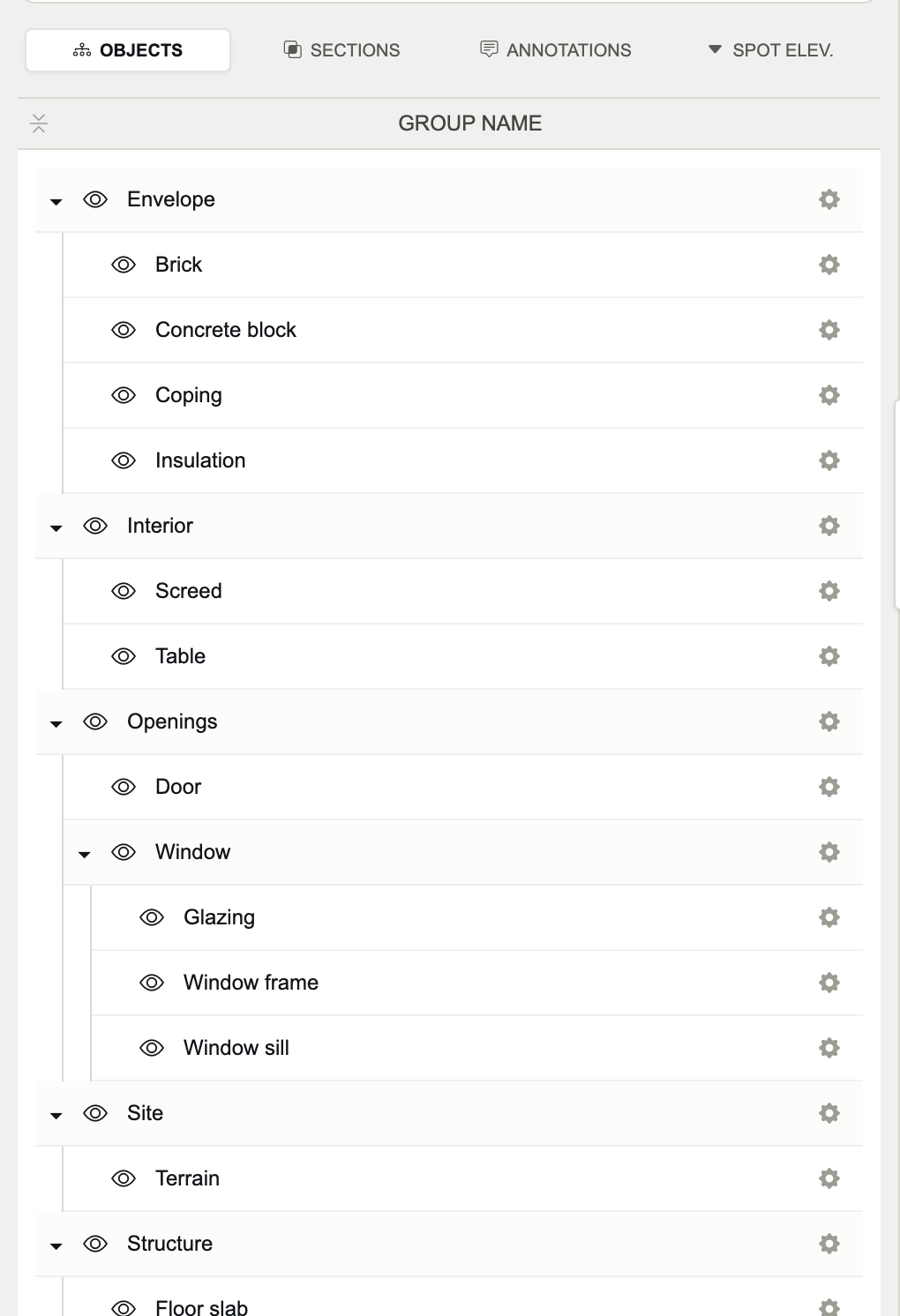
- OBJECTS
- The model's groups and objects as a tree. The button above the tree opens or closes every group.
- SECTIONS
- The views of the model, each with its symbol. The eye shows or hides its marker in the other views.
- ANNOTATIONS
- The notes placed in the model.
- SPOT ELEV.
- The spot elevations placed in the model, with their altitude.
Click a row to select it, ⌘-click (Ctrl-click) to add or remove one, Shift-click to select a range. With two rows or more, a bar shows Clear and Edit Selected.
The settings panels
A gear opens a panel in place of the model browser: Advanced Object Settings for an object, Section Marker Settings, Annotation Settings or Spot Elevation Settings for the other tabs. Back returns to the list. Every change is saved at once.
The drawing area
- Zoom with the mouse wheel or a trackpad pinch, around the pointer.
- Move the drawing by dragging it with the left or middle button, or with one finger.
- Double-click (double-tap on a touch screen) to fit the whole drawing.
- Sync
- Top left: the live link with Occlusia Link. Point at it to see the linked model and the last update.
- Render
- Top right: draws the active view (⌘↵ or Ctrl+Enter). Black when the drawing is out of date.
- Export drawings
- The download icon beside Render: the export dialog.
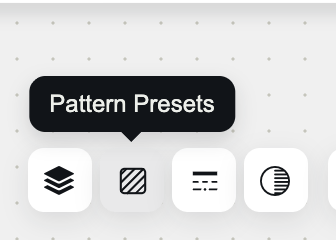
- Layers, Pattern Presets, Line Styles
- Bottom right: the project's libraries.
- Shadow Settings
- Bottom right: the sun and the shadows of the active view.
- Zoom
- The model's unit, − and +, the zoom (100 % = the whole drawing), and the pointer's position.
Up to date
Render due
The tools