Styling
Fills that tell materials apart
Solid fills and 82 hatch patterns, with their colour, background, weight, scale, angle and transparency — and presets that keep a material's look in one place.
Fill types
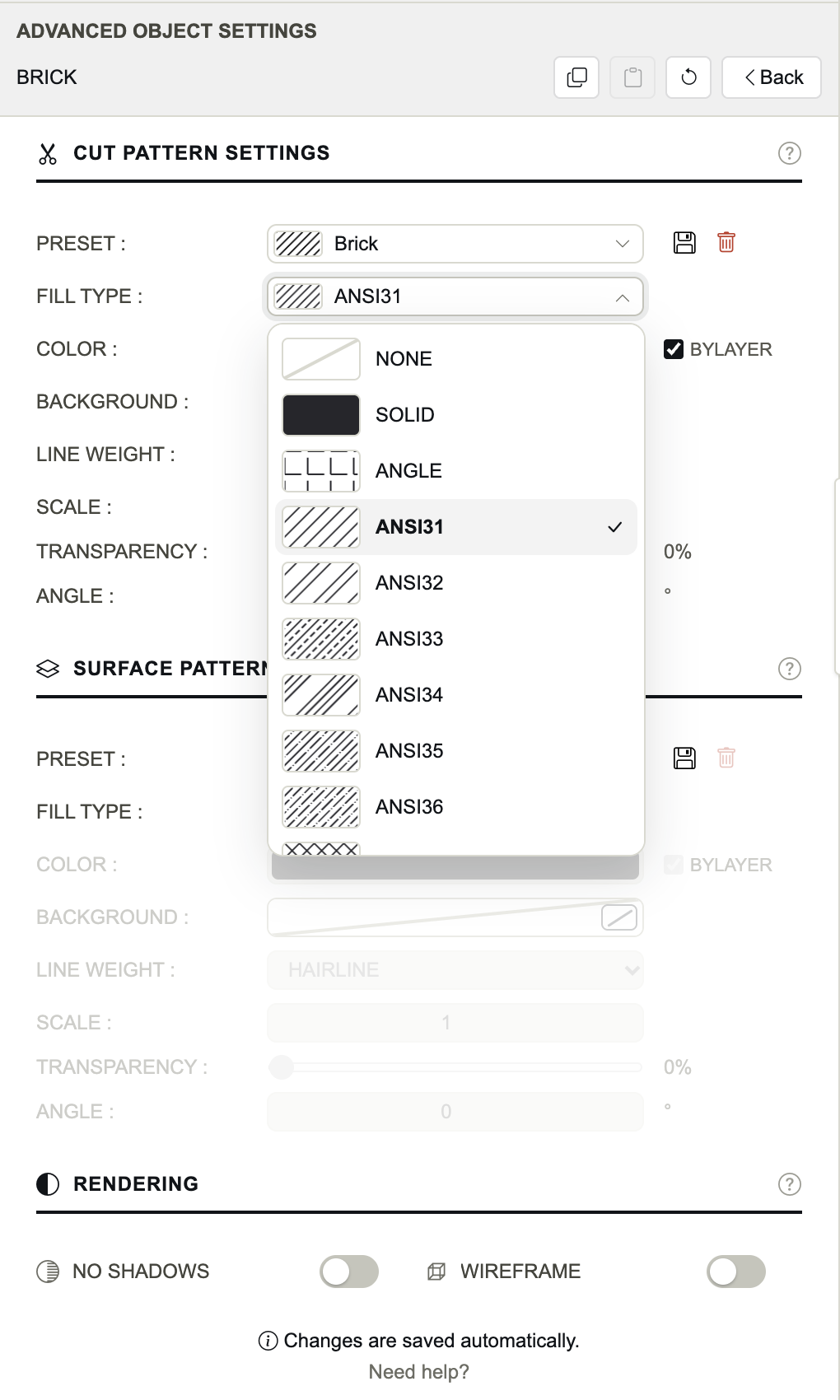
Fill Type chooses how the object is filled: in Cut Pattern Settings where it is cut, in Surface Pattern Settings where its faces are seen.
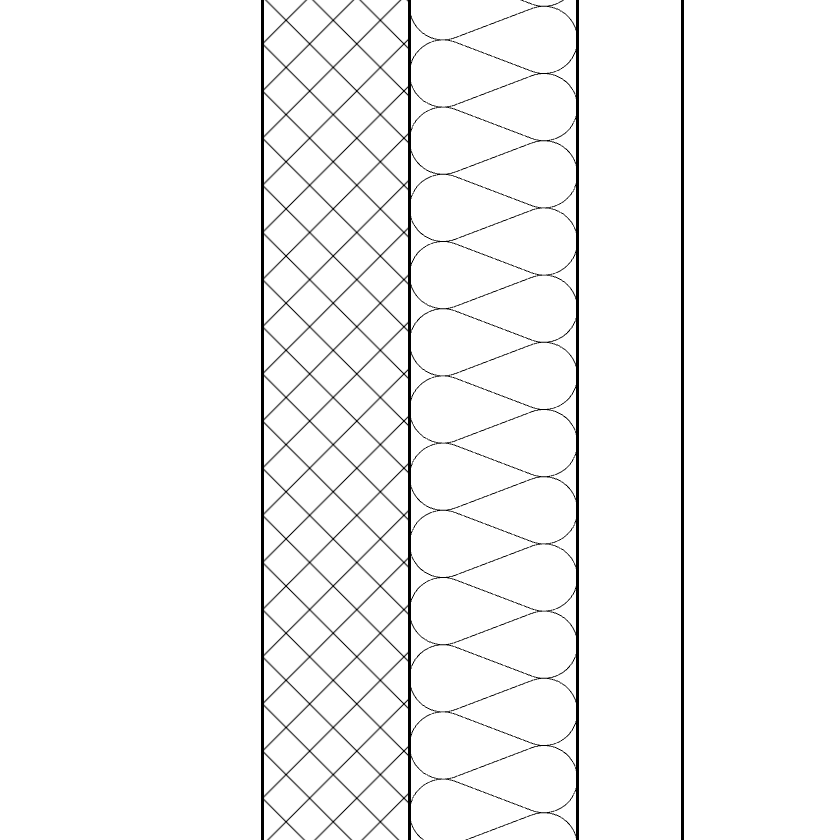
NONE
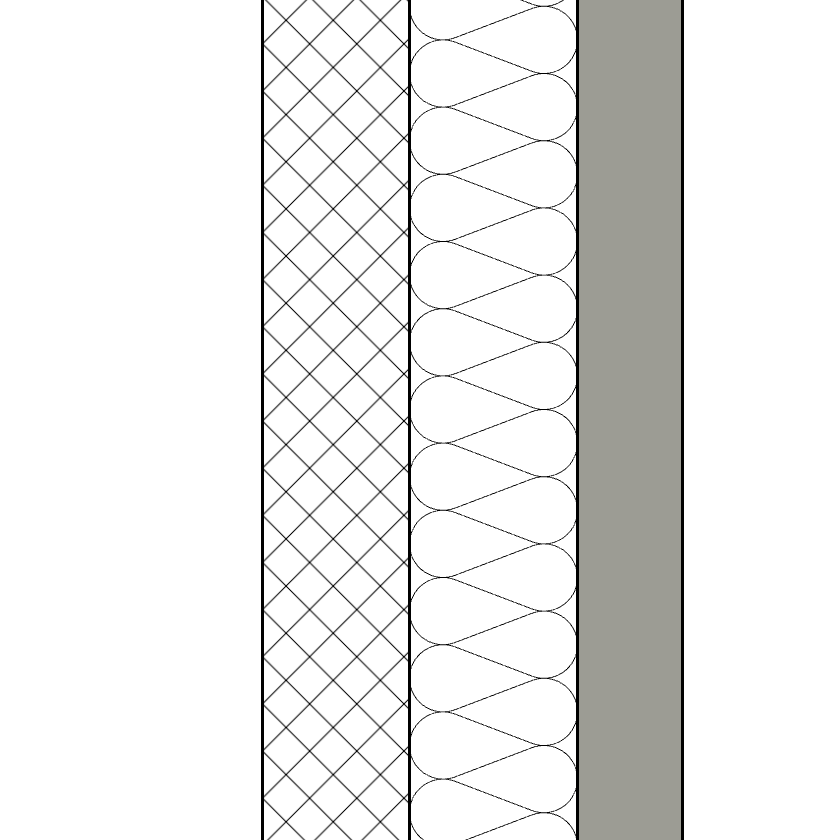
SOLID
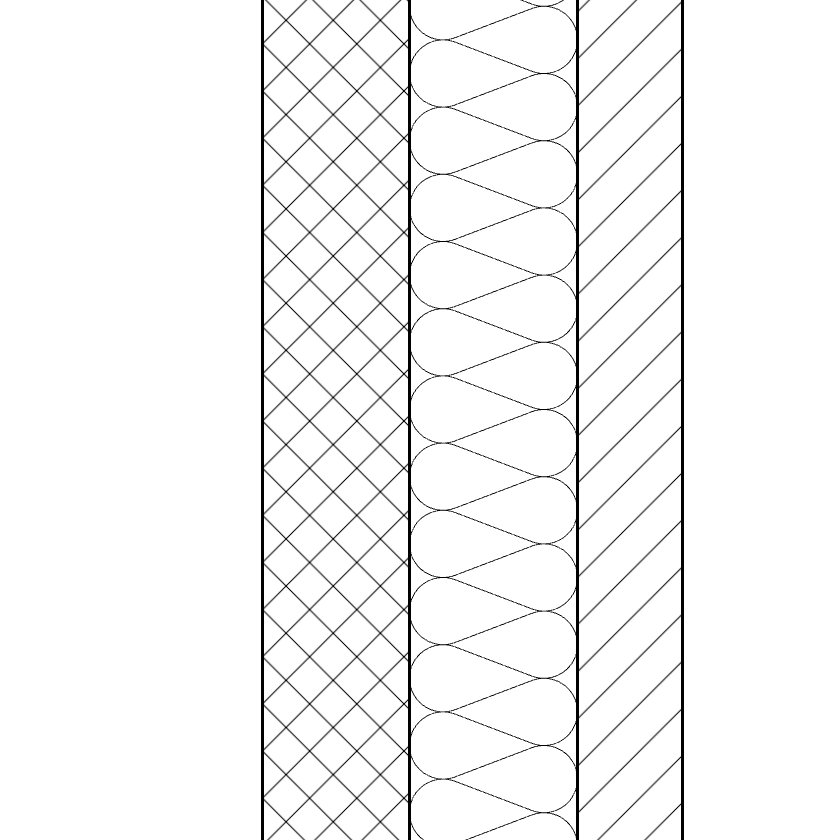
ANSI31
- NONE
- No fill. The default.
- SOLID
- A flat fill in the Color.
- Patterns
- 82 hatch patterns, from ANGLE to ZIGZAG.
The hatch catalog
The patterns are AutoCAD's own definitions — the ANSI, AR- and ISO families, the JIS and GOST ones, and the classics. The same definition draws the SVG and the PDF and is written into the DXF, so a hatch looks the same in the drawing and in your CAD software.
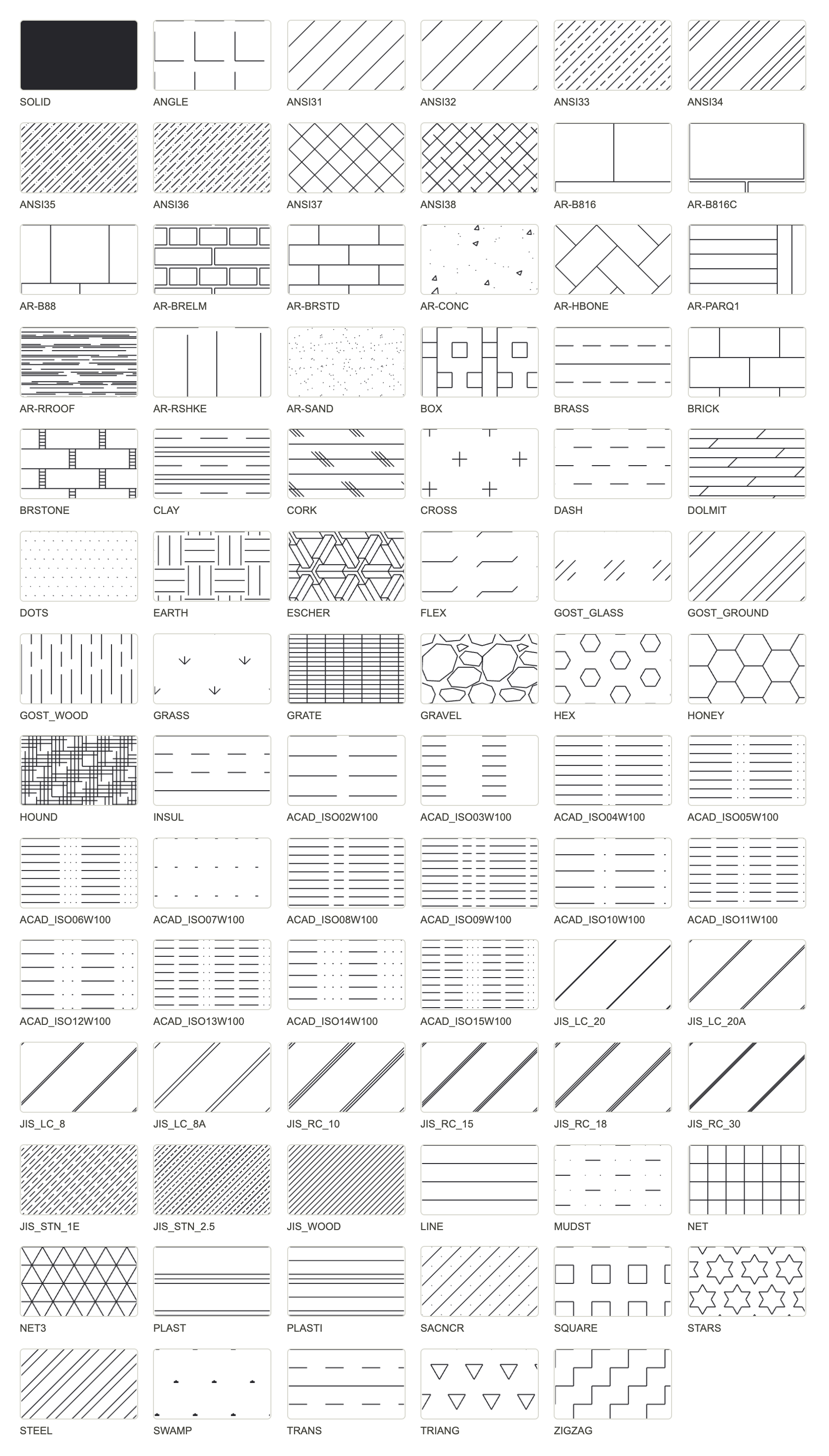
- ANSI31: general section hatching, brick and masonry.
- ANSI37: concrete block, crossed masonry.
- AR-CONC: concrete. AR-SAND: screed, sand, render.
- EARTH: ground. GRAVEL: hardcore.
- INSUL: insulation as a hatch (the INSULATION cut symbol draws batting instead).
- AR-B816, AR-BRSTD, BRICK: brick bonds, for façades in elevation.
- AR-PARQ1, AR-HBONE, NET: floors in plan.
Pattern settings
- Color
- The colour of the hatch lines, or of the solid fill. ByLayer: the DXF uses the layer's colour.
- Background
- A solid colour drawn behind the hatch, to set a material off the paper. The chip turns it off.
- Line Weight
- The weight of every line of the hatch. HAIRLINE by default.
- Scale
- Multiplies the pattern's size: 2 is twice as large, 0.5 half as large.
- Transparency
- 0 % opaque, 100 % invisible.
- Angle
- Turns the pattern counter-clockwise, as AutoCAD does: ANSI31's 45° lines become vertical at 45, horizontal at −45.
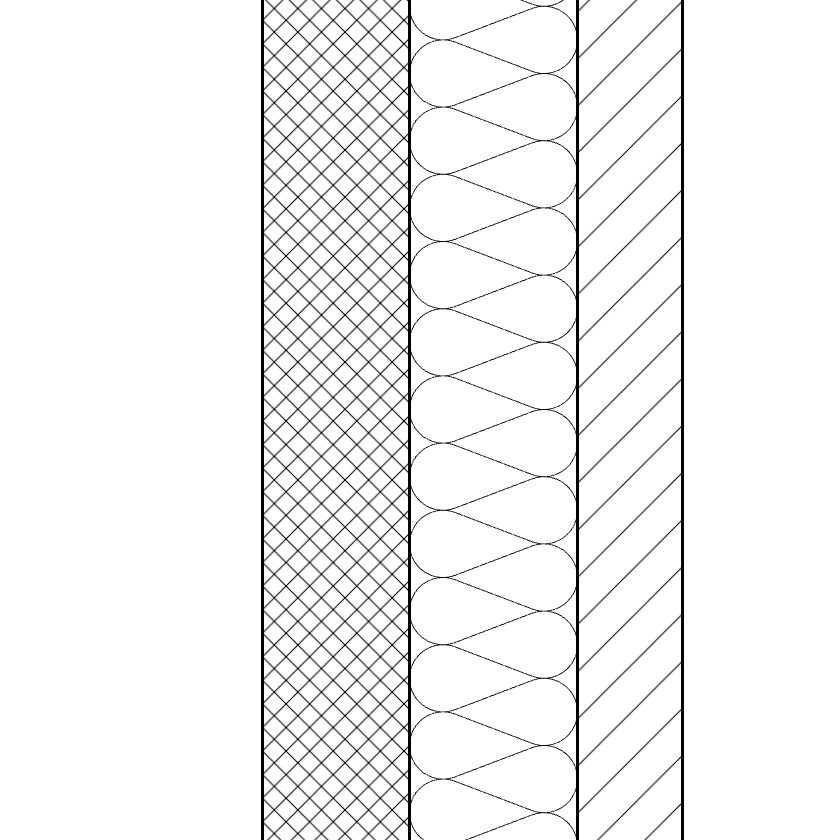
Scale 0.5
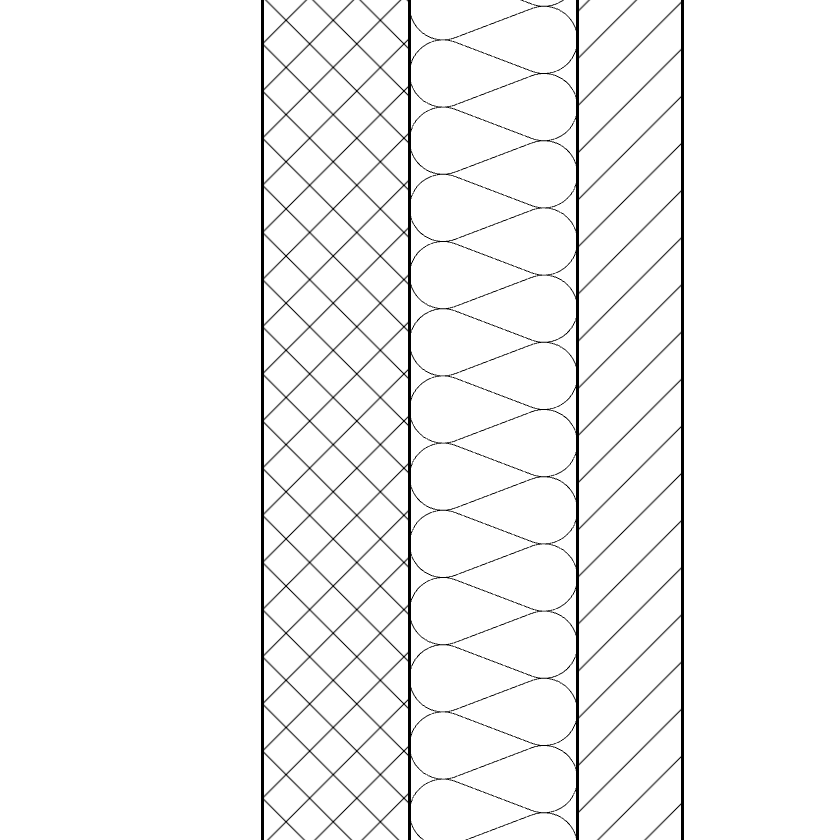
Scale 1
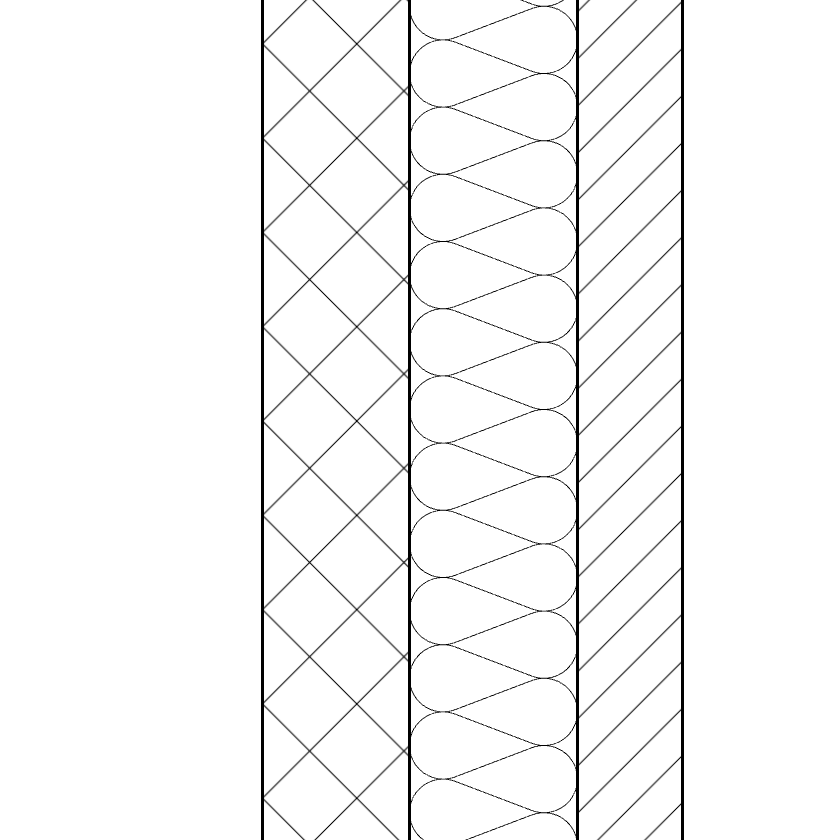
Scale 2
Rows that do not apply are greyed: with NONE, every row but Preset and Fill Type; with SOLID, Background, Line Weight, Scale and Angle. The Hatch Layer row of Layer Settings is greyed too while the object has no fill at all.
Pattern presets
A preset is a whole hatch — fill type, colour and its ByLayer box, background, weight, scale, angle, transparency — saved under a name. Choosing it in Preset sets every row at once; editing it changes every object that uses it.
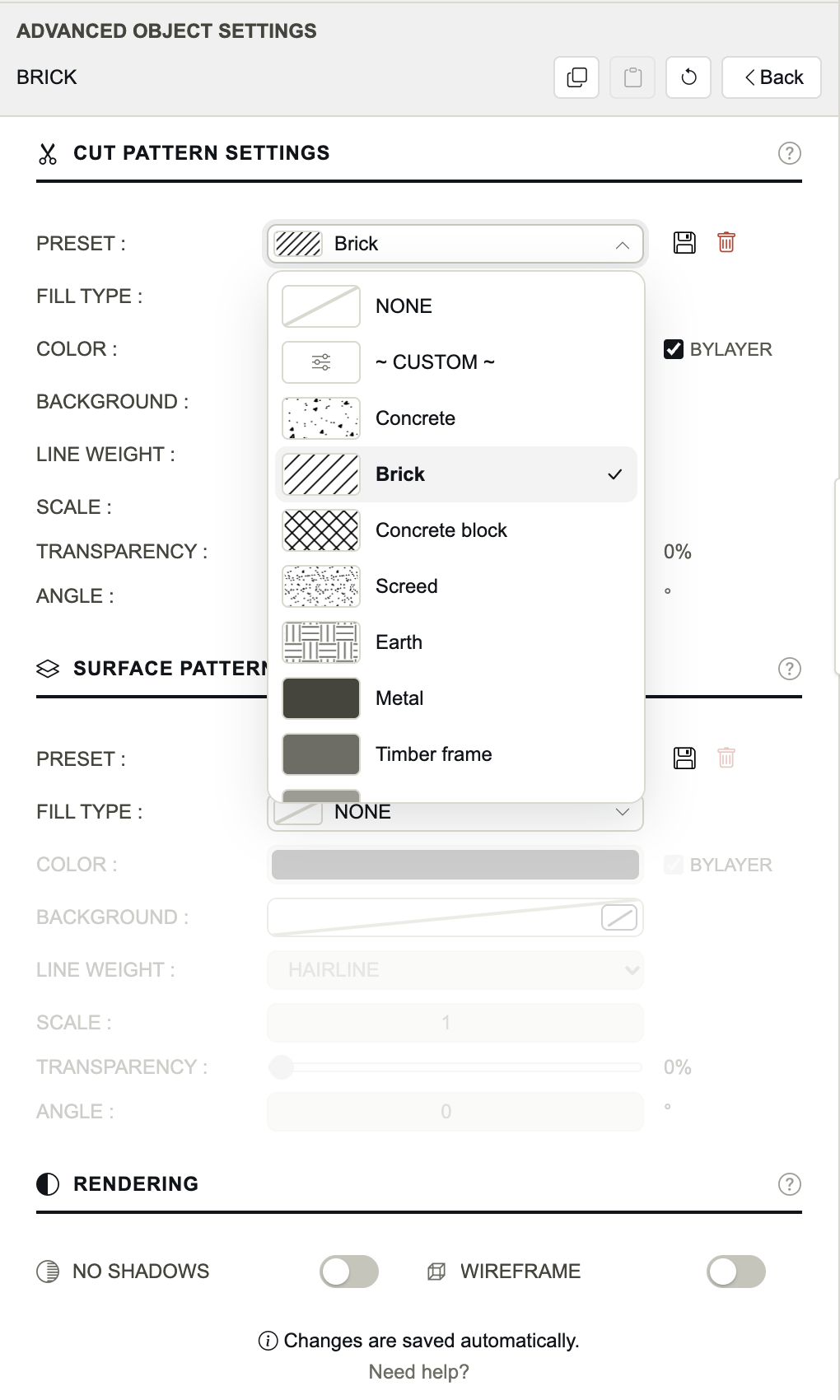
Preset
Fill Type
- NONE means no fill; ~ CUSTOM ~ means the rows match no preset.
- To save a preset, set the rows, click the floppy beside Preset and name it. On a preset already chosen, the floppy updates it.
- The bin deletes the chosen preset. Objects that used it keep their hatch, as their own settings.
The pattern presets library
The bottom right tool Pattern Presets (also in the menu) lists the project's presets with a preview of each. Edit one directly, make a new one with +, Duplicate or Delete it. The line under the settings says how many objects and shadows use it.
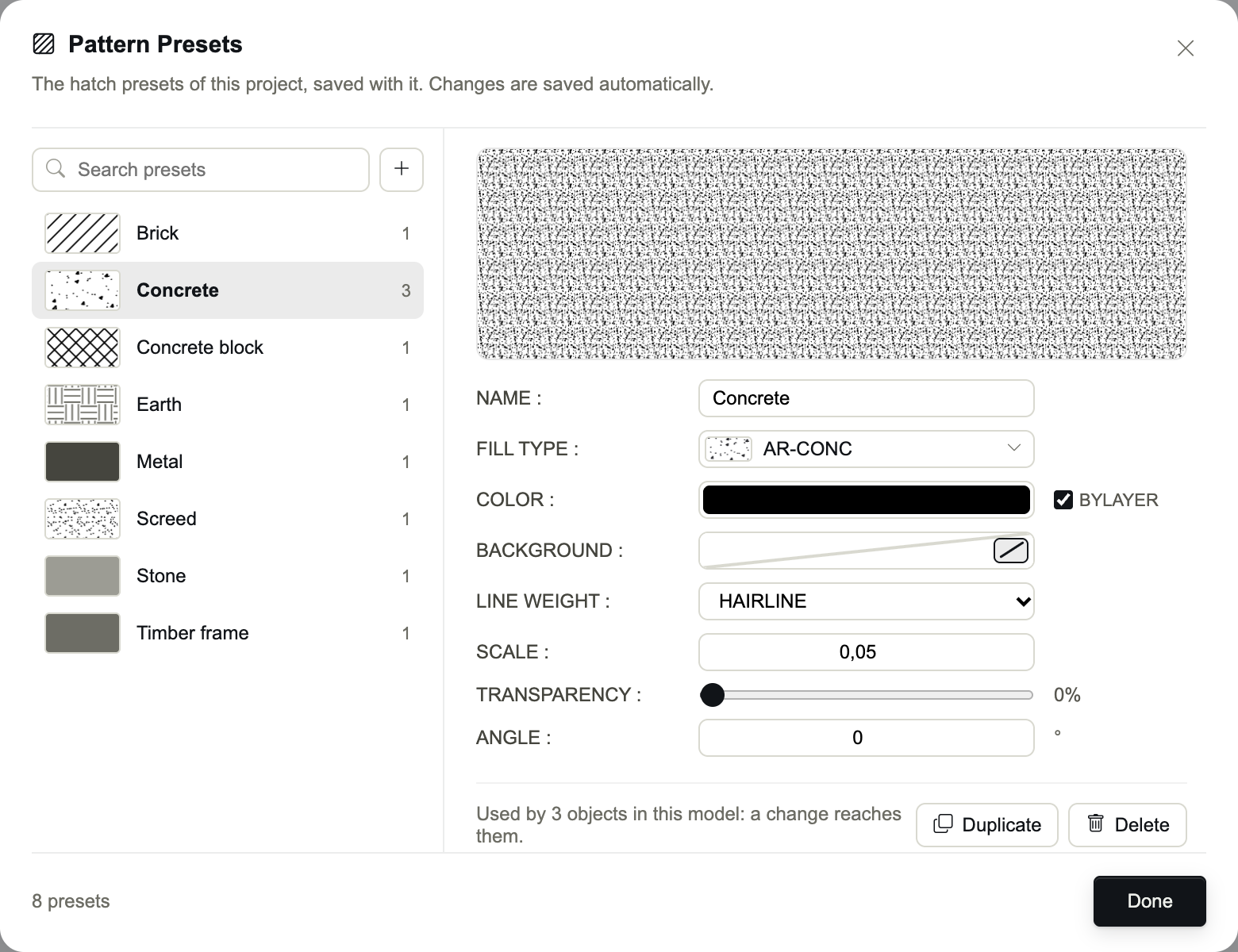
Presets belong to the project: they are saved with it, and a configuration file carries them to other projects.