Styling
DXF layers your CAD software understands
A project's layers organise the DXF: each object sends its cut lines, projected lines, hatches and symbol to the layers you choose, with their colour, weight and type.
What layers do
Layers are written into the DXF, where your CAD software shows, freezes, locks and plots them. In the SVG and the PDF, every object is drawn with its own colours and weights, whatever its layers.
- Layer 0 belongs to the application: every project has it, it cannot be renamed, changed or deleted, and everything goes to it until you choose another layer.
- The project's own layers are saved with the project, and travel in its configuration files.
- A ByLayer box ticked beside a colour, a weight or a type makes the DXF use the layer's value instead of the object's.
The Layers library
The bottom right tool Layers (also in the menu) lists every layer of the project, one row each, every cell editable on the spot.
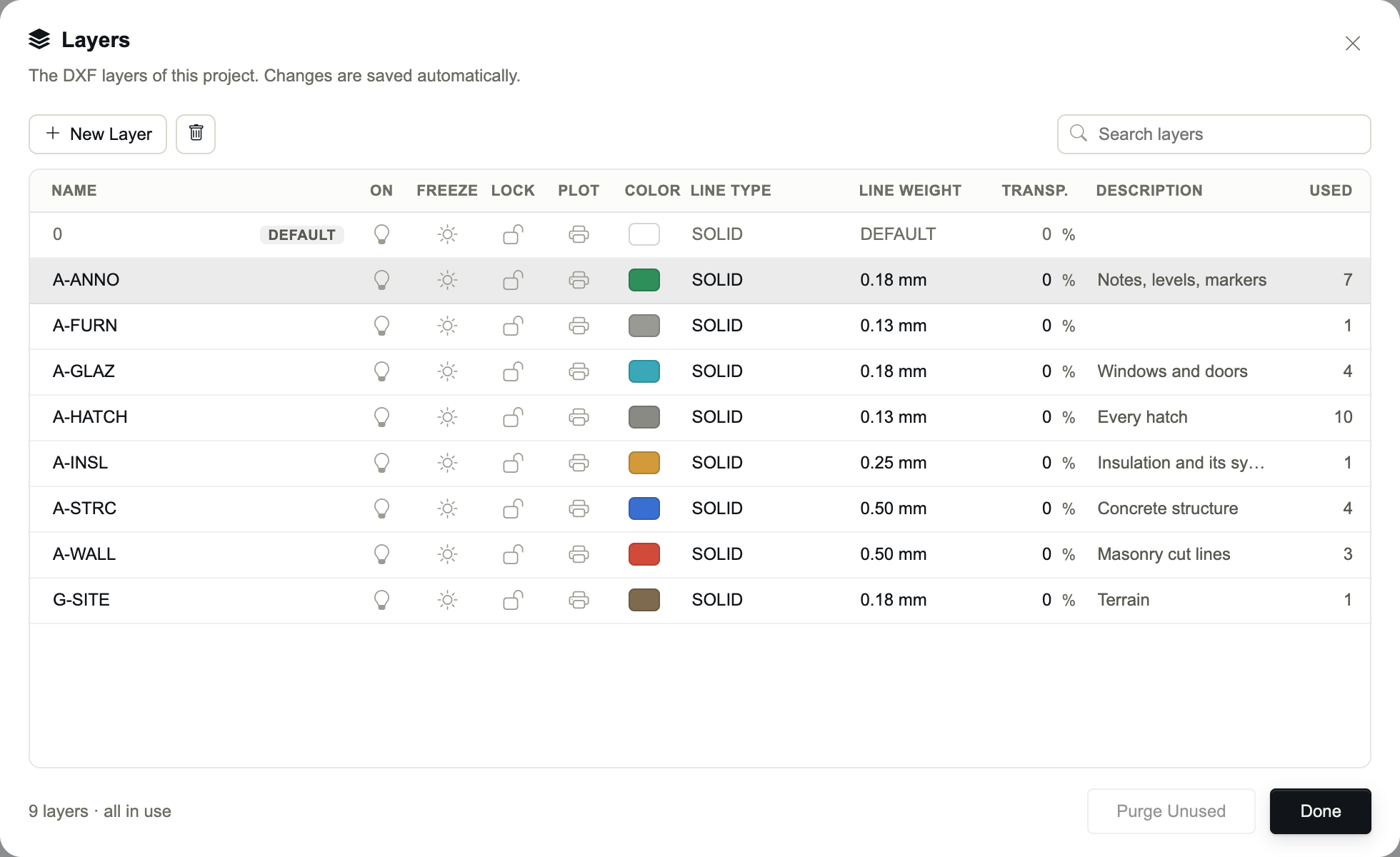
- Name
- Double-click, Enter or F2 to rename. Names are unique, whatever the case.
- On / Freeze / Lock / Plot
- The layer's states in your CAD software: shown, frozen, locked, printed.
- Color
- The layer's colour.
- Line Type
- The layer's line type, the standard ones or the project's own.
- Line Weight
- One of AutoCAD's lineweights, from 0.00 to 2.11 mm, or DEFAULT.
- Transp.
- The layer's transparency.
- Description
- A note about the layer. Double-click to write it.
- Used
- How many objects, views, notes and spot elevations of the open model use the layer. — means none.
- New Layer adds a layer named Layer n; with a layer selected, the new one copies its properties.
- Select several rows (⌘-click, Ctrl-click or Shift-click): a state, colour, type, weight or transparency changed on one of them applies to all.
- The bin, or the Delete key, deletes the selected layers; what used them goes back to layer 0.
- Purge Unused deletes every layer the open model does not use.
Assigning layers
- Objects
- Layer Settings (DXF) in the object panel: Cut Layer, Surf Layer, Hatch Layer, Cut Symbol, and Block Layer under Export as Block.
- Section markers
- Layer in Section Marker Settings.
- Annotations
- Layer in Annotation Settings.
- Spot elevations
- Layer in Spot Elevation Settings.
- Shadows
- Layer in Shadow Settings, for each view.
Beside each layer list, + creates a new layer and assigns it at once, the pencil edits the selected layer, the bin deletes it.