Views and marks
Dimensions that follow the model
Occlusia dimensions a view by itself — the chains around the building, the rooms, the level marks — and every dimension is then edited on the drawing. Change the model: the dimensions follow.
Auto dimensions
The bottom right tool Auto dimensions, first of the tools, opens its panel. Its switch dimensions the active view by itself: a plan's chains on every side with its openings and walls, its rooms, a section's storeys and level marks, an elevation's heights. Turn it off to take away what it placed; the dimensions you added stay.
Auto dimensions is in beta: its rules are still improving, so check a dimensioned view before you send it.
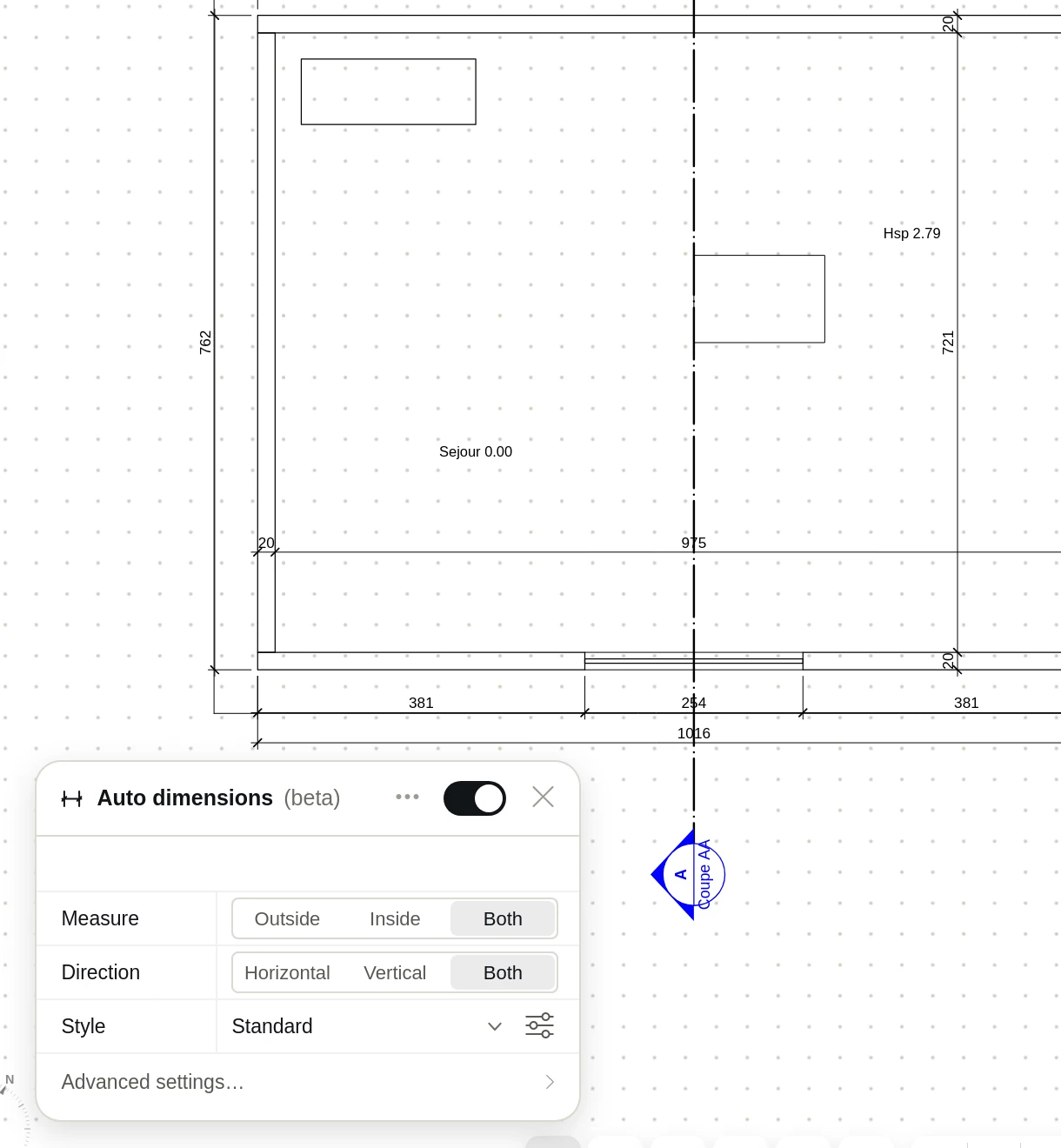
- Measure
- Outside, the chains around the building; Inside, the rooms; or Both.
- Direction
- Horizontal, Vertical or Both.
- Style
- The view's dimension style: every dimension of the view is drawn with it. The button beside it opens Dimension styles.
- Advanced settings…
- Every option of the rules, in Dimension settings.
- …
- The view's actions: Check, Reset changes, Restore deleted chains, Lock, Copy to other views…, Use as default, Remove all dimensions.
These dimensions are rules, not lines: move a window or a wall in the model, render, and its chains follow. Use as default makes the view's settings the ones every view starts from.
Dimension settings
Advanced settings… opens every option of the rules in one grid, by group. Click a parameter's name to see on the drawing at the left what it changes; change its value in its cell. Each change is saved with the view, which is drawn again at once.
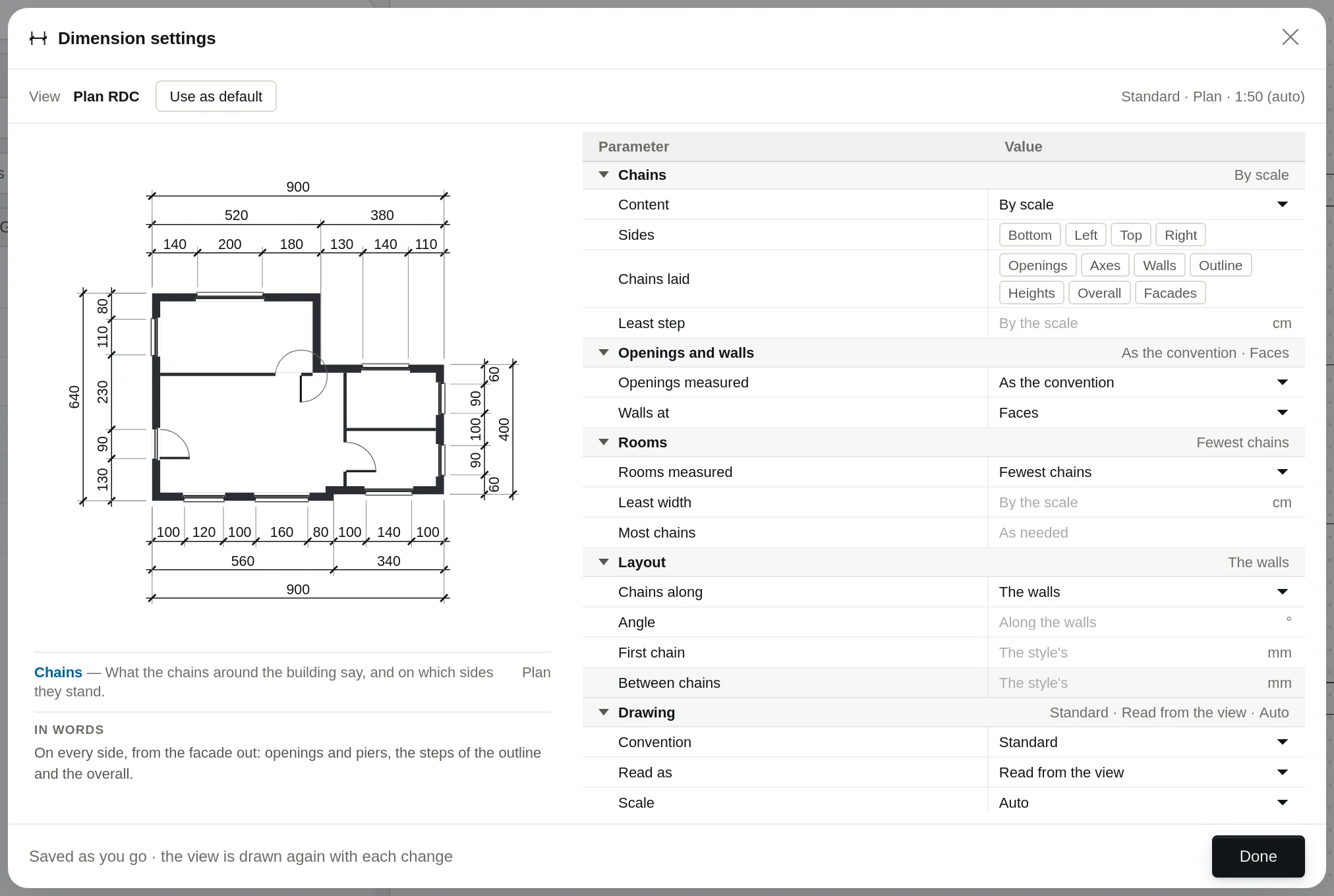
- Chains
- What the chains around the building say — the openings, their axes, the walls, the outline's steps, the overall — and on which sides.
- Openings and walls
- Where an opening is measured, as the convention does or by its jambs, its structure, its frames or its axis; the walls by their faces or their axes.
- Rooms
- Each room's width and depth, or the fewest chains across them.
- Layout
- Chains along the walls or the view's axes, the distance to the first chain and between chains.
- Drawing
- The convention the rules follow, the kind of drawing the view is read as and the scale the dimensions are sized for.
- Building
- What is the building and what is around it, told by the model browser's selection.
Dimension styles
Dimension styles, from the panel's style button or the tool bar, sets how dimensions look: the unit and its decimals, the terminators, the texts, the pens, the level marks and the angles. The built-in Standard is read only: New… or Duplicate… makes a style of the project to edit.
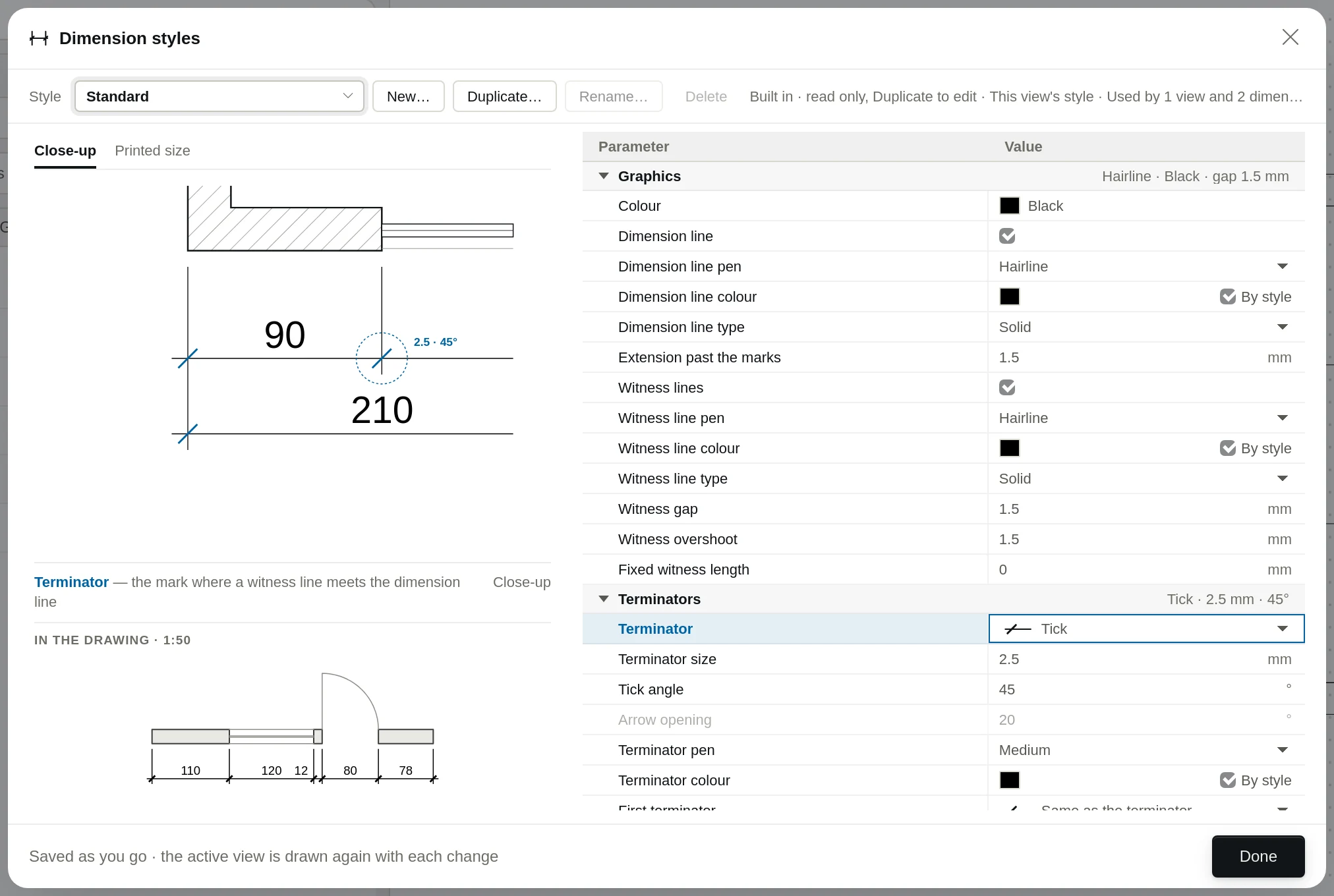
- One style a view: every dimension of the view is drawn with it. Set as default makes a style the project's default and the active view's.
- Click a parameter's name: the close-up draws that part large with the style's own values, and the engine draws a short chain under it as your views will. A value is drawn while you type it.
- Find a style in the list at the top by typing a few letters of its name.
- Every change is saved with the project; Undo takes it back.
Editing on the drawing
Every dimension is edited on the drawing, whether Occlusia placed it or you did. Click one to take it in hand: the tool bar at the left edge of the drawing says what can be done to it. Its handle, Edit annotations, opens the bar at any time.
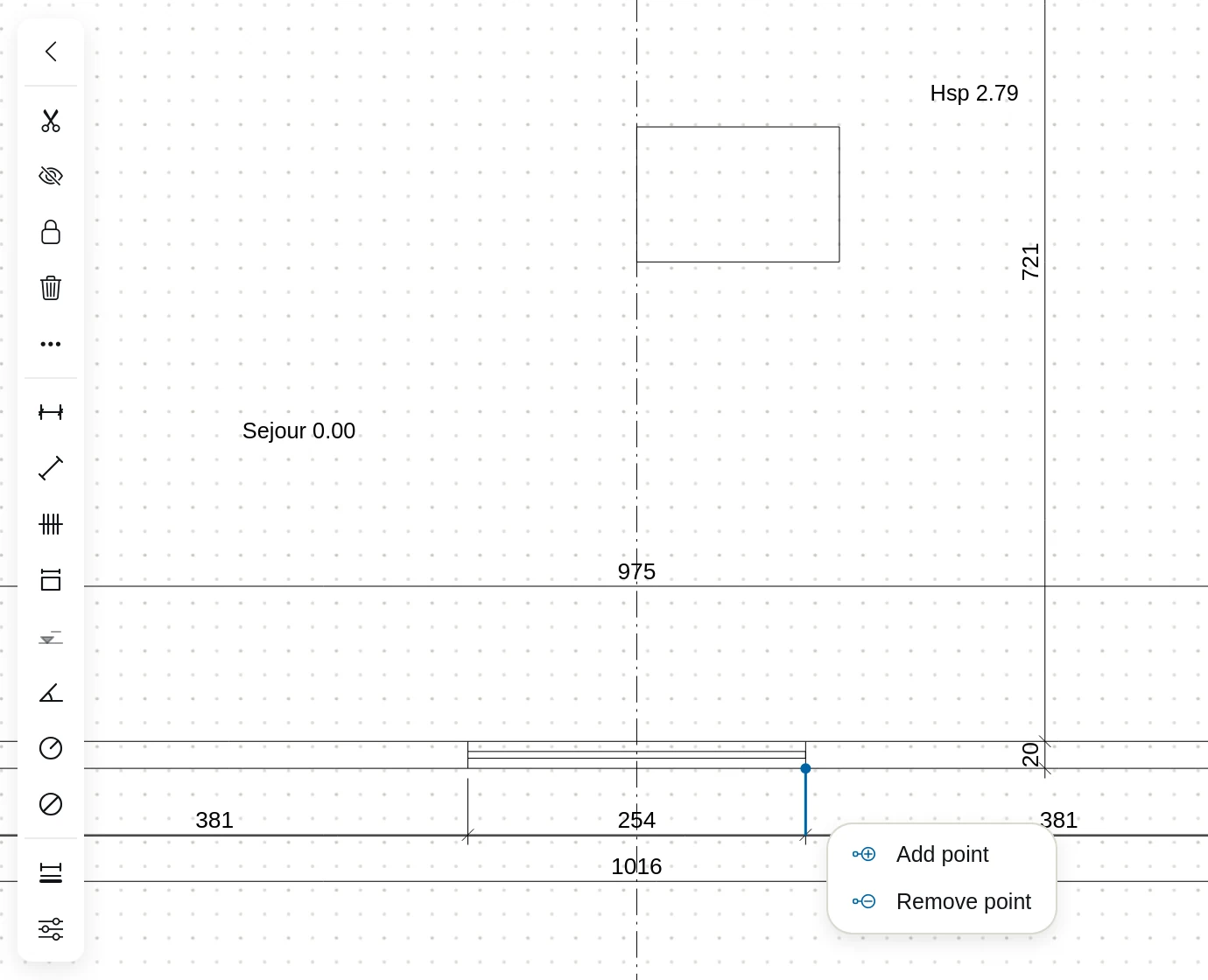
- Drag a value, a chain's line or one of its points. Only the dimension in hand moves: a drag on another moves the view. The chain is drawn where it goes while you drag.
- Rest the pointer on a chain: Add point adds a point to it — click it on the drawing —, Remove point takes one away.
- Double-click a value, or press Enter, to reword it:
<>stands for the measured value. - Delete hides a value, leaves a point out of its chain or deletes a chain; Undo brings it back.
- Right-click for every action: back in its place, the measured value again, hide a witness line or a terminator, bring back what was deleted, reset, lock.
- A dimension taken on an object follows it: move the object in the model, and the dimension moves with it.
Level marks
- In a section, the rules place a level mark on every floor; the Level tool places one where you click.
- Drag a level mark, or move it with the arrow keys: 1 mm of paper a press, 10 mm with Shift, 0.1 mm with Alt. A mark placed by the rules slides along its floor and keeps its floor's altitude.
- Flip horizontally puts the value on the other side of the mark; Flip vertically puts the mark under its line. Both are in the tool bar and the right-click menu.
- The style draws them as the spot elevations do: a triangle, a half triangle, an open triangle or a target.
Placing dimensions
The tool bar's tools place dimensions: Linear, Aligned, Across (everything a line crosses), Object size, Level, Angle, Radius and Diameter, each with its key (see Keyboard shortcuts).
- Points snap to the drawing's corners, middles and lines. Enter or a double click ends a chain, Backspace takes the last point back, Alt places a point as it is, Escape stops.
- While you place a point or move something, dashed guides line it up with the other dimensions and with the corners you passed over, and hold it straight while it runs nearly level, plumb or at 45°.
Saved with the project
The dimensions, their changes, the styles and the defaults are saved in the project (.occp) and in its configuration (.occc): import a configuration on another model and its views are dimensioned the same way. Every output draws them: the SVG, the PDF, the images and the DXF, where each dimension is a block on its layer.
Through the API and MCP
Everything above is a command: dimensions.auto, dimensions.update for every change of a dimension, dimensions.setup for a view's style and scale, dimensions.defaults for the project's defaults, and dimension_styles.*. Through the MCP server, ask in your words: “dimension the ground floor plan, then put a point on the kitchen window”.
curl $API/sessions/$S/commands/dimensions.update -H "Authorization: Bearer $KEY" \
     -H 'Content-Type: application/json' \
     -d '{"section":"Ground floor plan","id":"d1","changes":{"add_stations":{"bottom/openings":[{"view":[420,-35]}]}}}'